Terms and Conditions

These Terms govern your access to, and usage of all content, Product, and Services available at iptvhorizon.com website.

Your access to our services is subject to your acceptance, without modification, of all of the terms and conditions contained herein and all other operating rules and policies published and that may be published from time to time by us.

Please read the Agreement carefully before accessing or using our Services. By accessing or using any part of our Services, you agree to be bound by these Terms. If you do not agree to any part of the terms of the Agreement, then you may not access or use our Services.

Intellectual Property

The Agreement does not transfer from Us to you any of our or third-party intellectual property, and all rights, titles, and interests in and to such property will remain (as between the parties) solely with IPTVHORIZON and its licensors.

Third-Party Services

In using the Services, you may use third-party services, products, software, embeds, or applications developed by a third party (“Third Party Services”).

If you use any Third Party Services, you understand that:

  • Any use of a Third Party Service is at your own risk, and we shall not be responsible or liable to anyone for Third Party websites or Services.
  • You acknowledge and agree that We shall not be responsible or liable for any damage or loss caused or alleged to be caused by or in connection with the use of any such content, goods, or services available on or through any such websites or services.

Accounts

Where the use of any part of our Services requires an account, you agree to provide us with complete and accurate information when you register for an account.

You will be solely responsible and liable for any activity that occurs under your account. You are responsible for keeping your account information up-to-date and for keeping your password secure.

You are responsible for maintaining the security of the account that you use to access the Service. You shall not share or misuse your access credentials. You must notify us immediately of any unauthorized uses of your account or upon becoming aware of any other breach of security.

Termination

class=”s1″>We may terminate or suspend your access to all or any part of our Services at any time, with or without cause, with or without notice, effective immediately.

If you wish to terminate the Agreement or your IPTVHORIZON account, you may simply discontinue using our Services.

All provisions of the Agreement which by their nature should survive termination shall survive termination, including, without limitation, ownership provisions, warranty disclaimers, indemnity, and limitations of liability.

Disclaimer

Our Services are provided “AS IS.” and “AS AVAILABLE” basis. IPTVHORIZON and its suppliers and licensors hereby disclaim all warranties of any kind, express or implied, including, without limitation, the warranties of merchantability, fitness for a particular purpose, and non-infringement. Neither IPTVHORIZON nor its suppliers and licensors makes any warranty that our Services will be error-free or that access thereto will be continuous or uninterrupted. You understand that you download from, or otherwise obtain content or services through, our Services at your own discretion and risk.

Jurisdiction and Applicable Law

Except to the extent any applicable law provides otherwise, the Agreement and any access to or use of our Services will be governed by the laws of UK.

The proper venue for any disputes arising out of or relating to the Agreement and any access to or use of our Services will be the state and federal courts located in UK.

Changes

IPTVHORIZON reserves the right, at our sole discretion, to modify or replace these Terms at any time.

If we make changes that are material, we will let you know by posting on our website, or by sending you an email or other communication before the changes take effect. The notice will designate a reasonable period of time after which the new terms will take effect.

If you disagree with our changes, then you should stop using our Services within the designated notice period, or once the changes become effective.

Your continued use of our Services will be subject to the new terms.

Setup Guide For Windows/Mac

Windows: 
Download IPTV Smarters app through this URL : https://www.iptvsmarters.com/download?download=windows_app

MAC :
Download IPTV Smarters app through this URL : https://www.iptvsmarters.com/download?download=mac

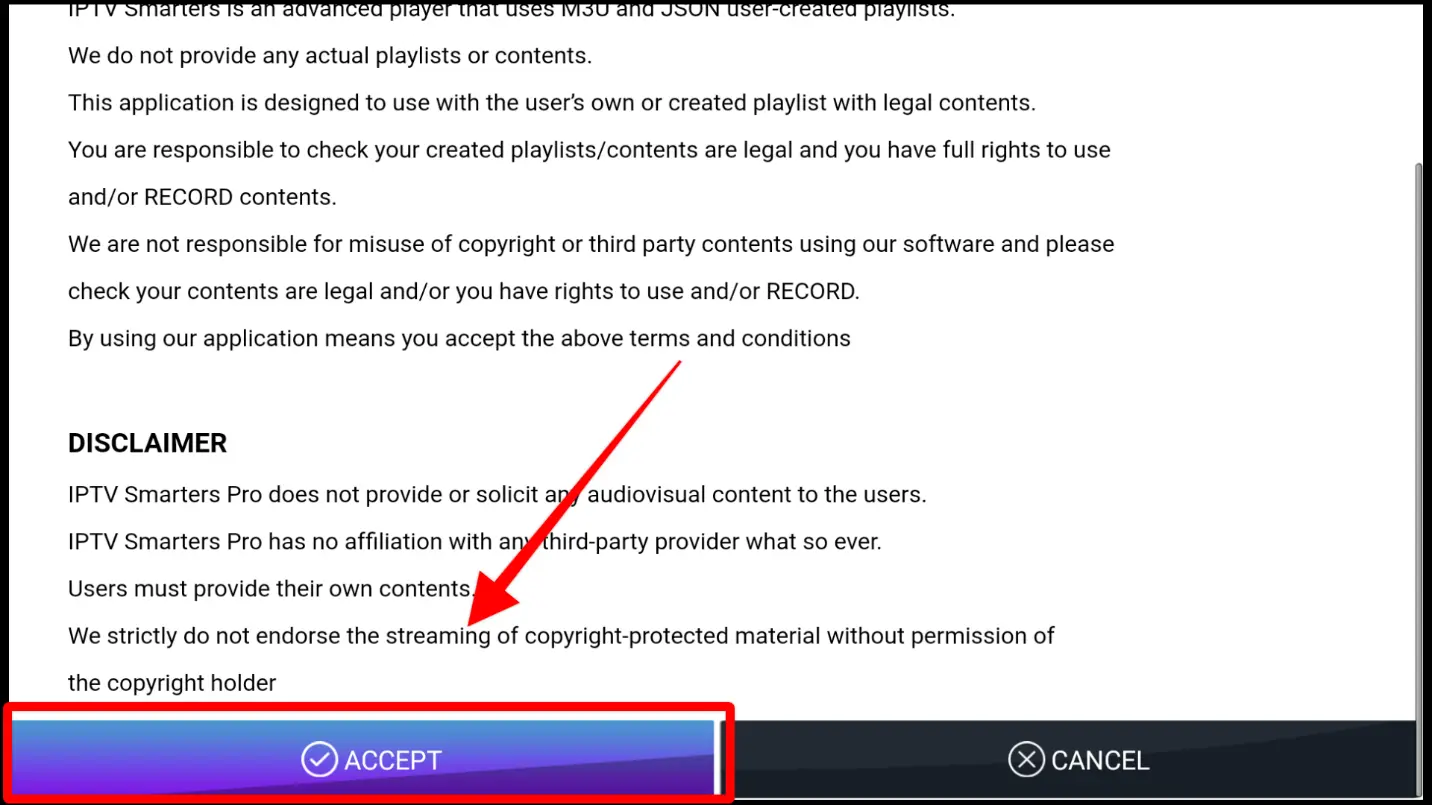
Step 2. Open the Application and Accept the “License Agreement”.

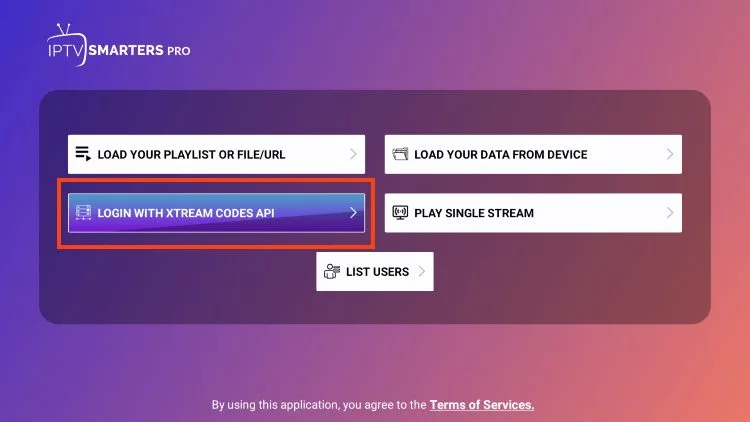
Step 3. Choose Xtream Codes API (XC Codes API)

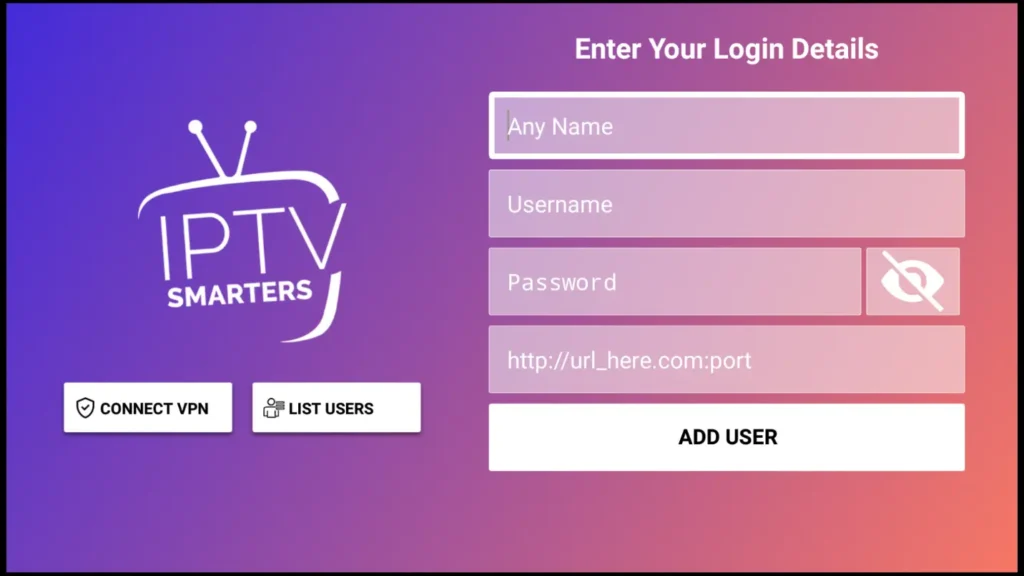
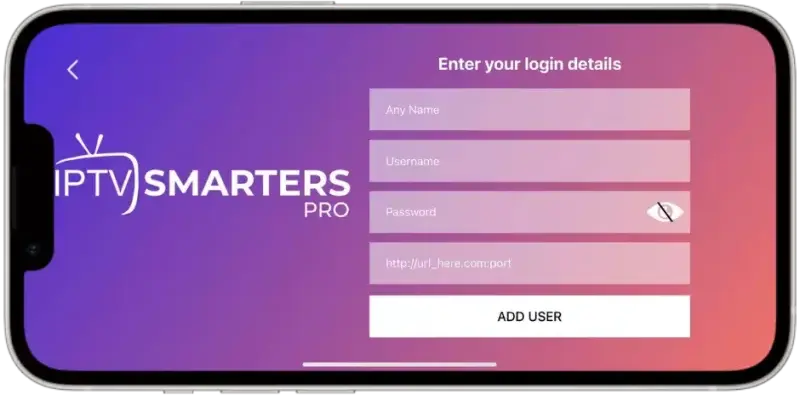
Step 4. Enter Your Playlist Details ( Username, Password, and HOST URL), and Click ADD USER.

Step 8. Wait For The Playlist To Be Downloaded 

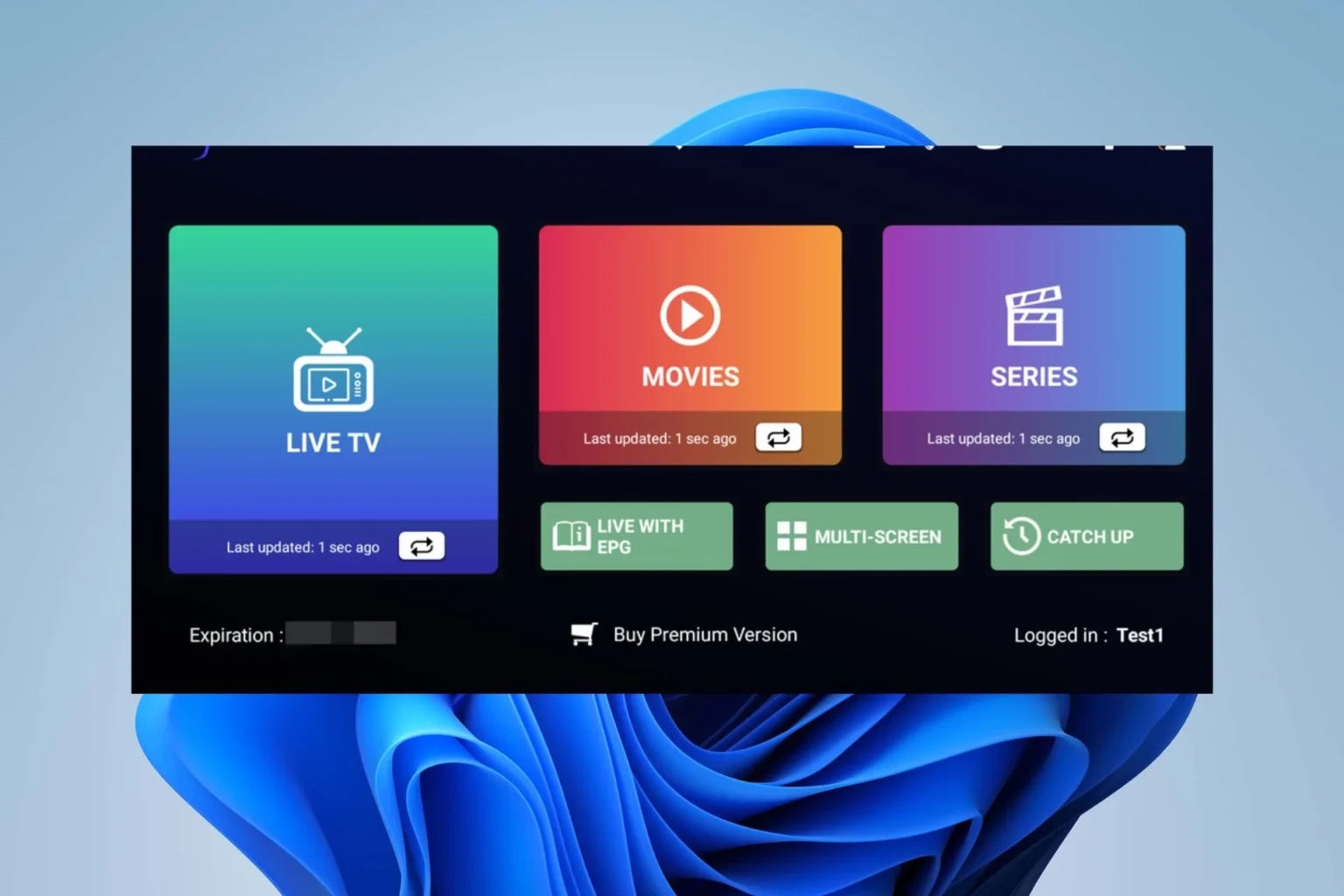
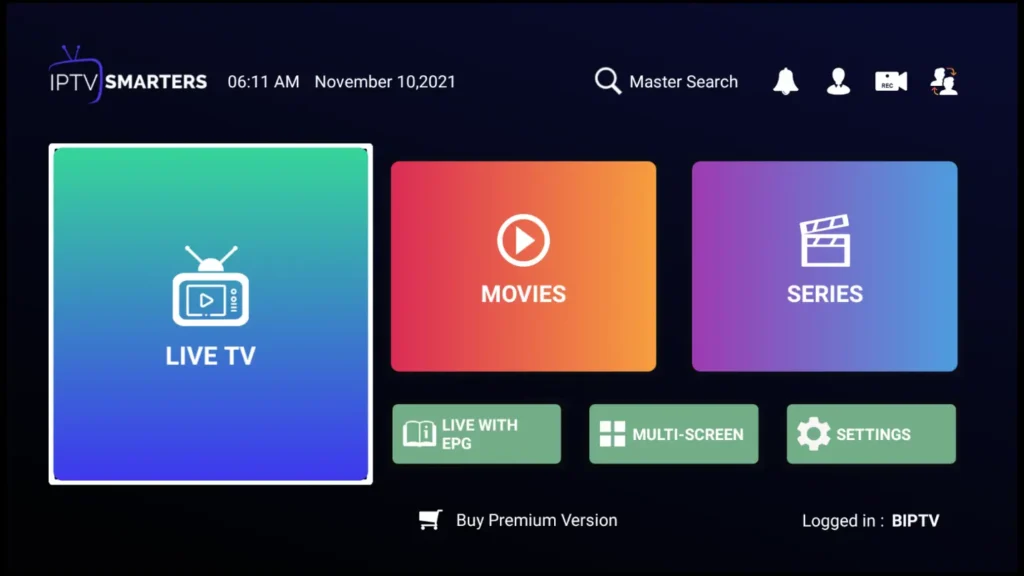
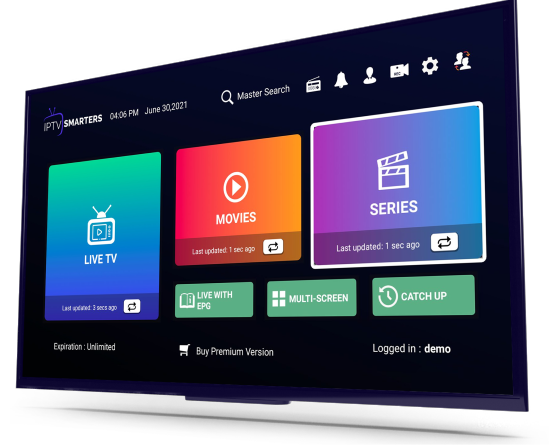
Step 8. Now you can Select The Category That you want to watch

Done

Setup Guide For MAG/STB

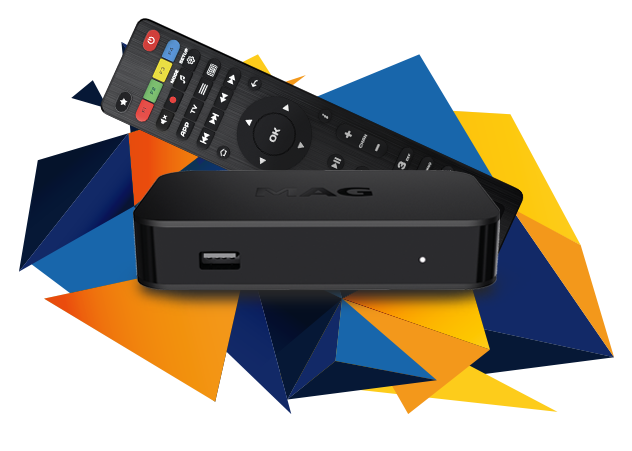
Step 1: Send us the MAC Address of your MAG via Whatsapp

Step 2: After making the payment, we will send you the portal link

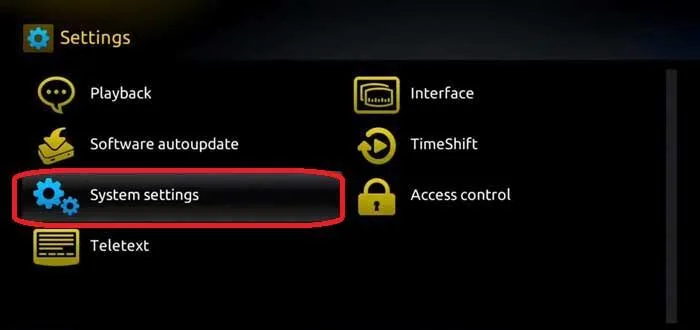
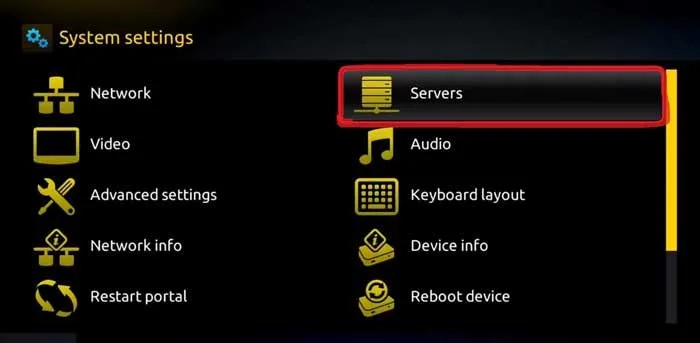
Step 3: Launch System settings.

Step 4: Navigate to the Servers option.

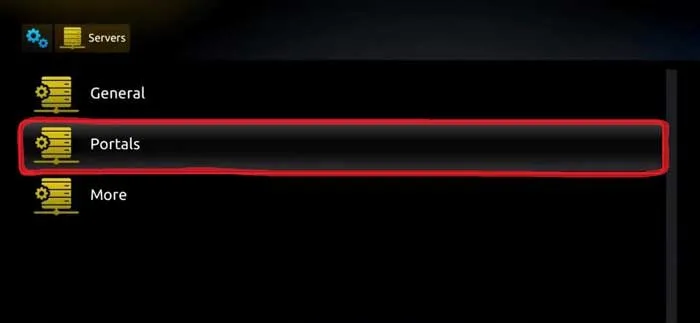
Step 5: Select the “Portals” option.

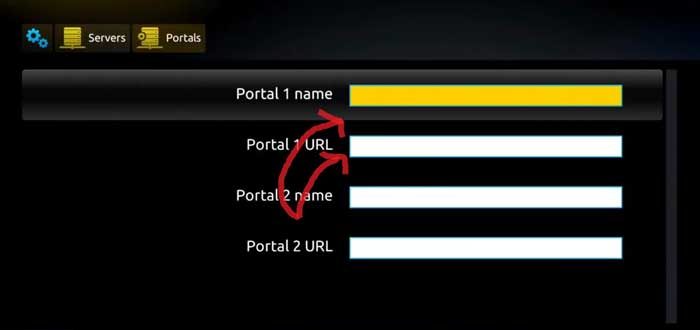
Step 7. Give the Portal a name then enter the link we have provided you 

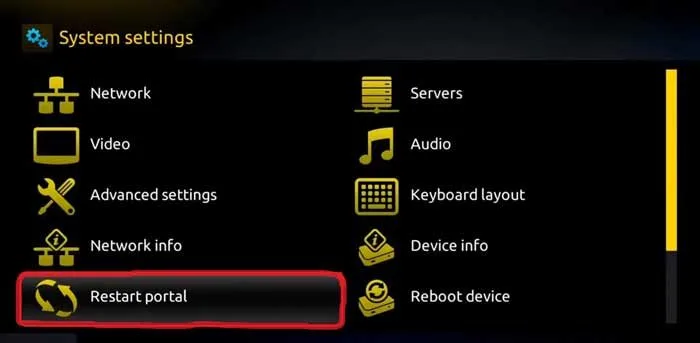
Step 8. Now, go back to the System settings and click on the restart portal option.

Done

Setup Guide For IOS Devices
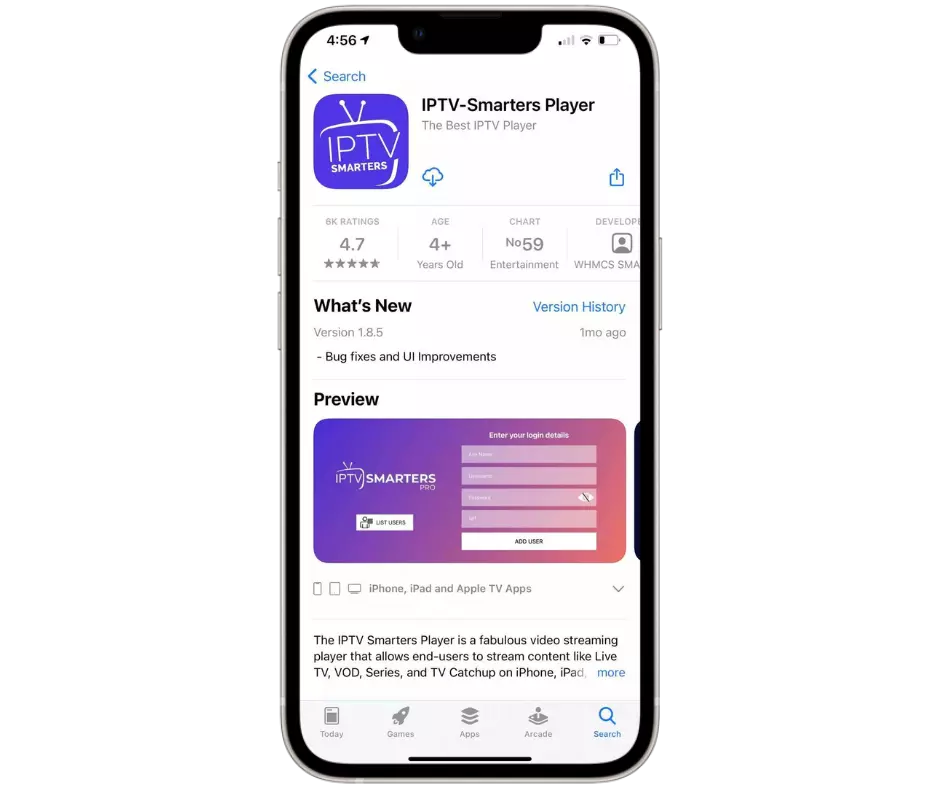
Step 1: Start by downloading IPTV Smarters Lite app  through this URL:  
             https://apps.apple.com/in/app/smarters-player-lite/id1628995509

Step 2. Open the Application and Accept the “License Agreement”.

Step 3. Choose Xtream Codes API (XC Codes API)

Step 4. Enter Your Playlist Details ( Username, Password, and HOST URL), and Click ADD USER.

Step 8. Wait For The Playlist To Be Downloaded 

Step 8. Now you can Select The Category That you want to watch

Done

Setup Guide For Android

Step 1: Start by downloading IPTV Smarters app  through this URL:
            https://www.iptvsmarters.com/smarters.apk

Step 2. Open the Application and Accept the “License Agreement”.

Step 3. Choose Xtream Codes API (XC Codes API)

Step 4. Enter Your Playlist Details ( Username, Password, and HOST URL).

Step 7. Click on “ADD USER”

Now you can Select The Category That you want to watch

Done

Setup Guide For The FireStick

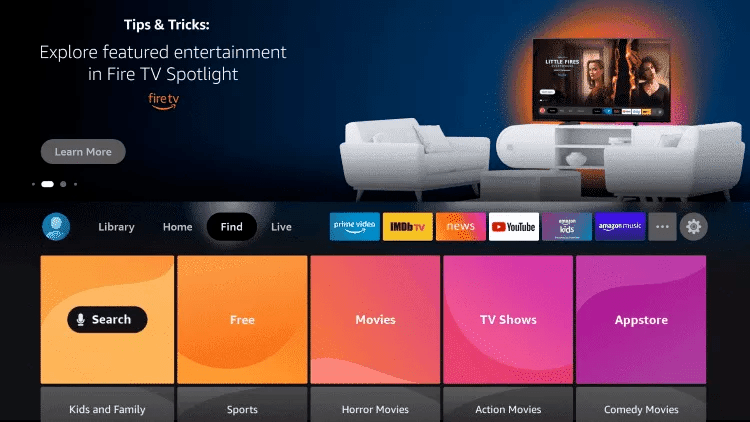
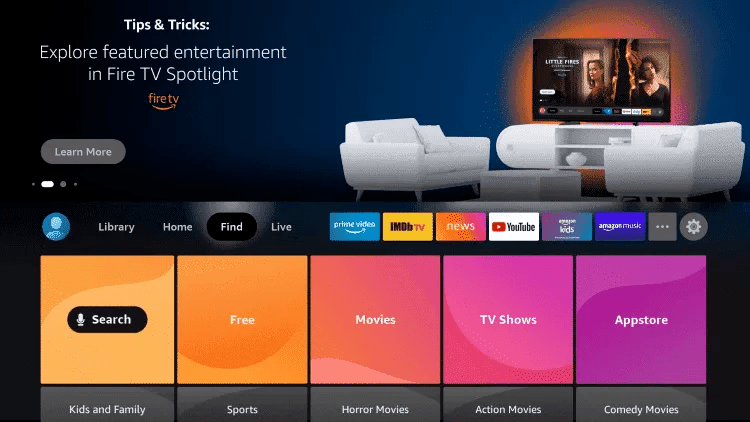
1. From the home screen of your device, hover over the Find option.

2. Click Search.

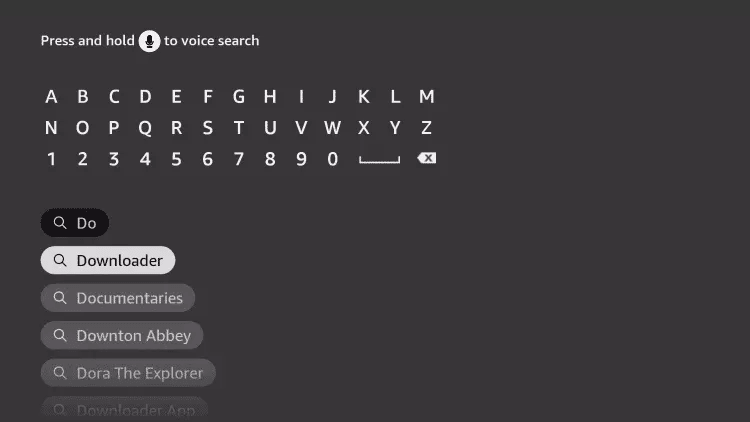
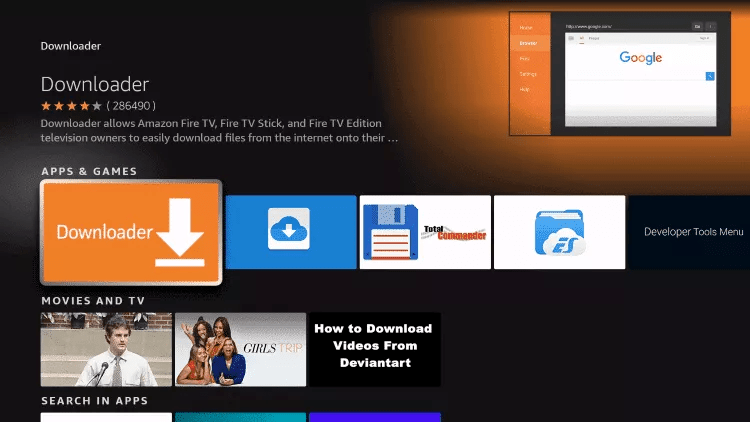
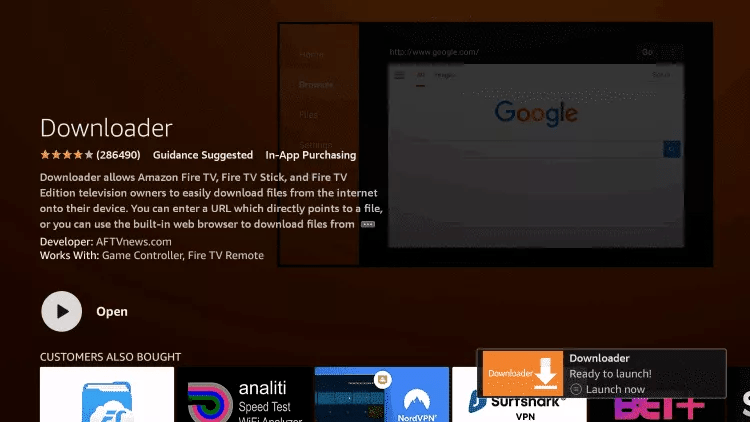
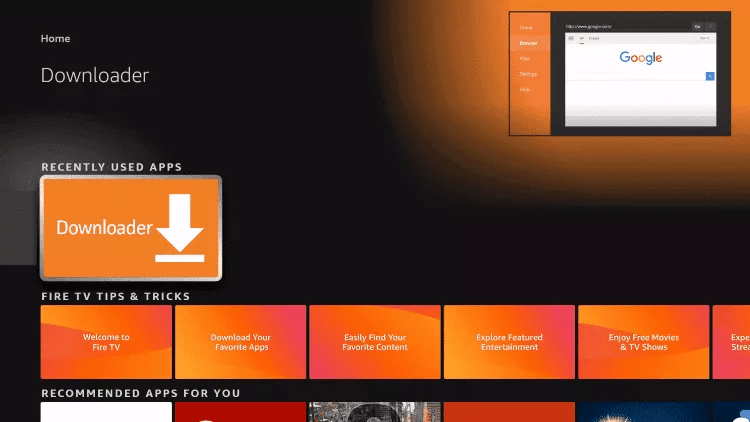
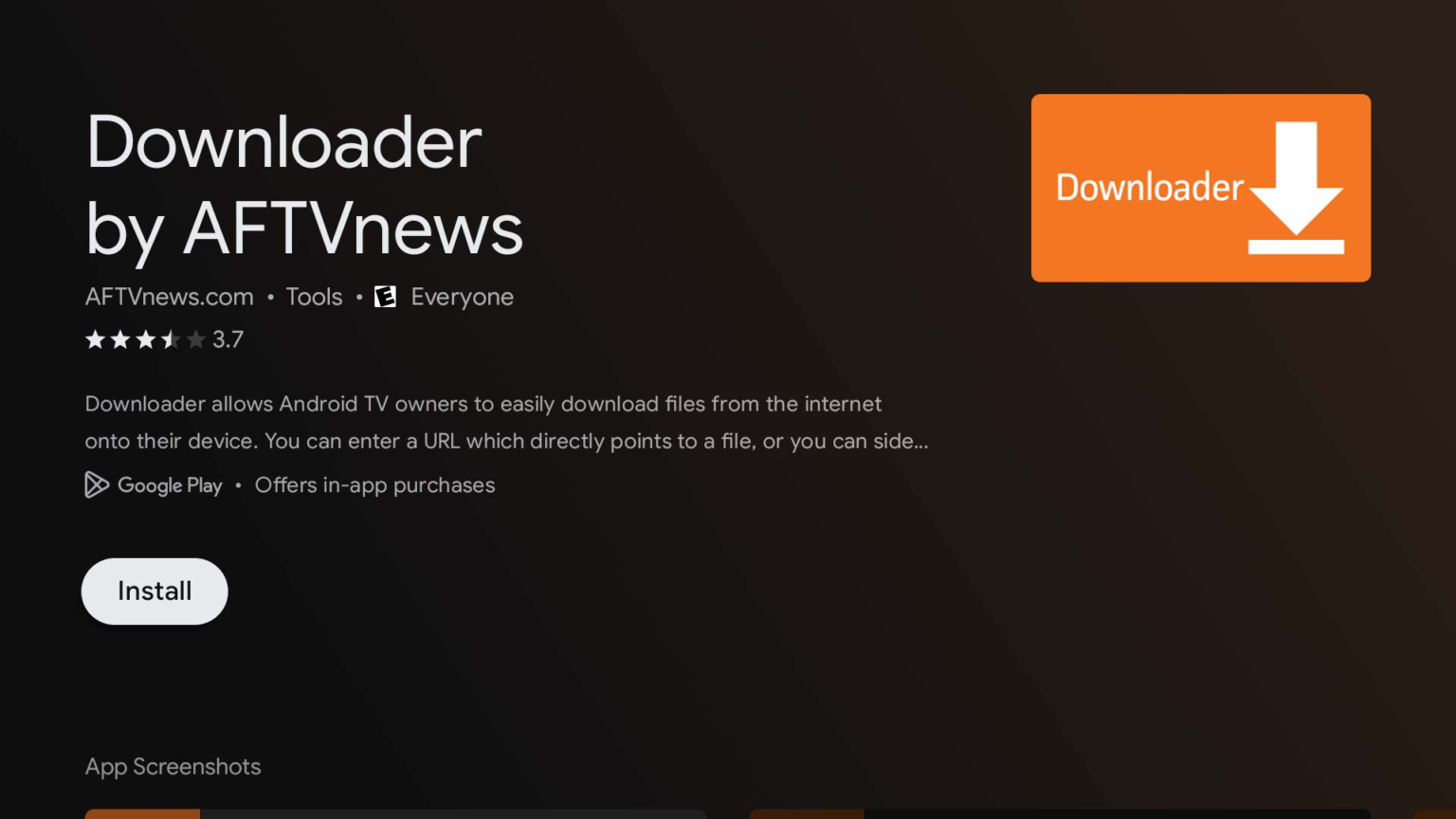
3. Search for and select Downloader.

4. Choose the Downloader app.

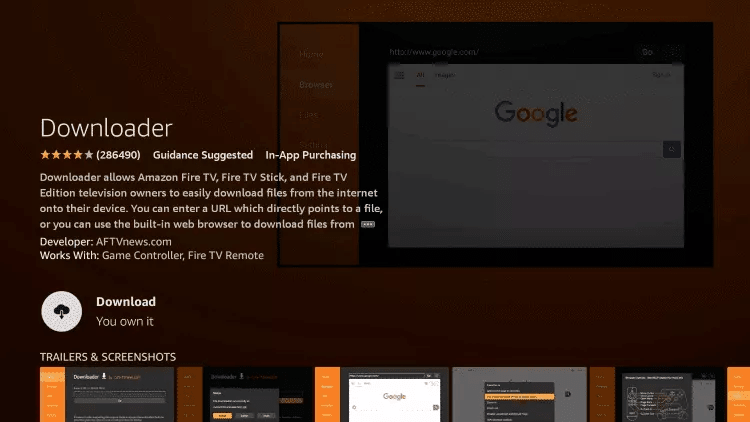
5. Click Download.

6. Once the app finishes installing click Open.

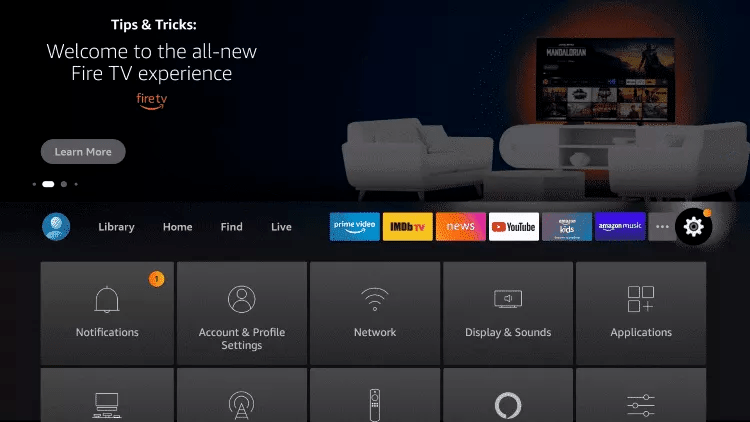
7. Return to the home screen and open Settings.

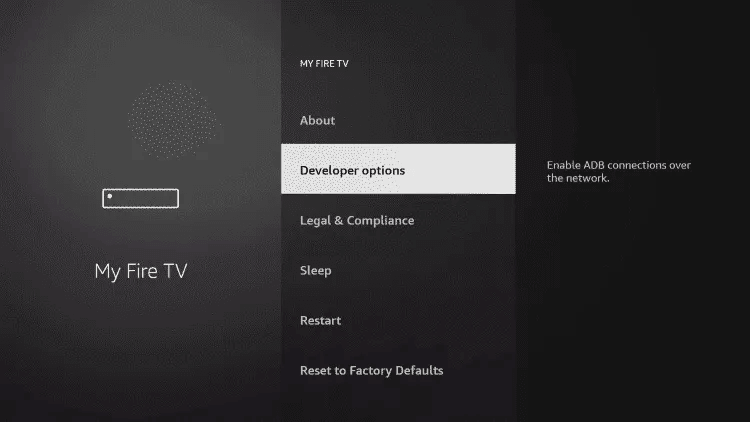
8. Click My Fire TV.

9. Choose Developer options.

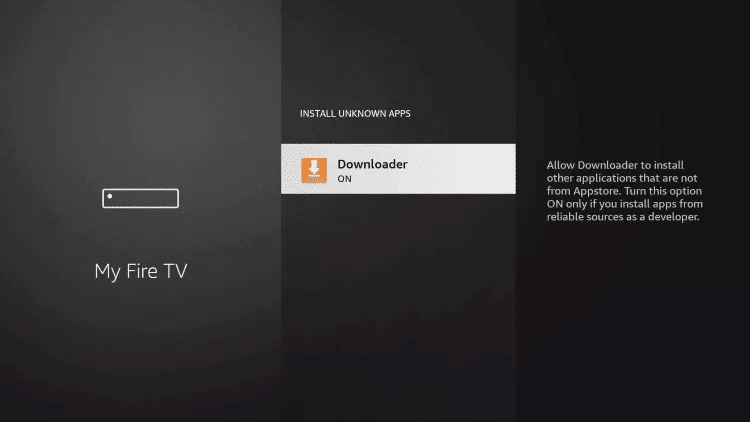
10. Click Install unknown apps.

11. Find the Downloader app and click it.

12. This will turn Unknown Sources to On for the Downloader app. This will enable side-loading on your device.

13. Launch Downloader.

14. Click Allow.

15. Click OK.

16. Type the following URL exactly as shown here: https://www.iptvsmarters.com/smarters.apk  and click Go.

Downloader app for Fire TV and Android TV now supports built-in Google Search | AFTVnews

17. Wait for file to download

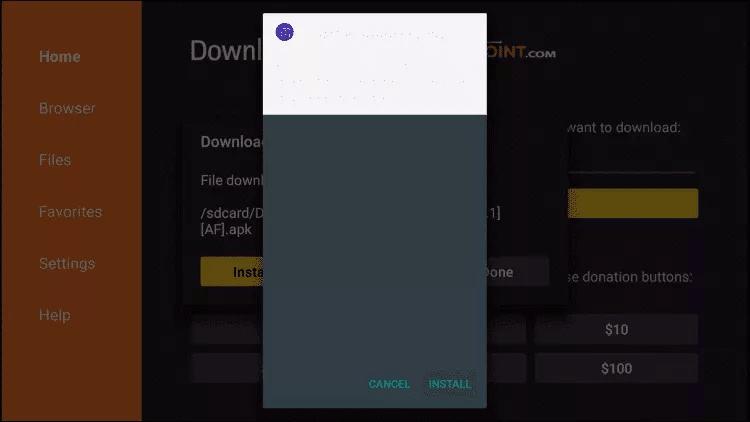
18. Click Install.

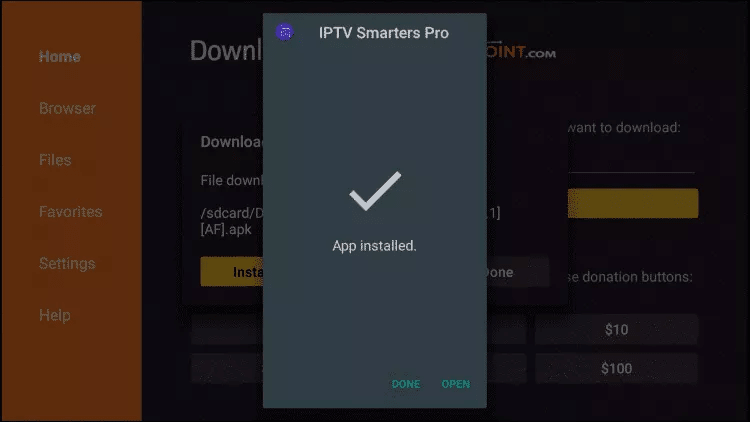
19. Open The App.

21. Install the App

Step 22. Choose Xtream Codes API (XC Codes API)

Step 23. Enter Your Playlist Details ( Username, Password, and Server URL).

Step 24. Click on “ADD USER”

Now you can Select The Category That you want to watch

Done

Setup Guide For Android TV

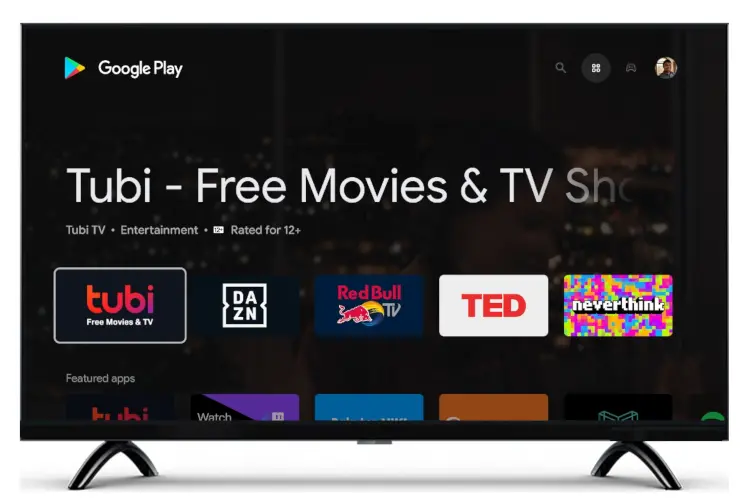
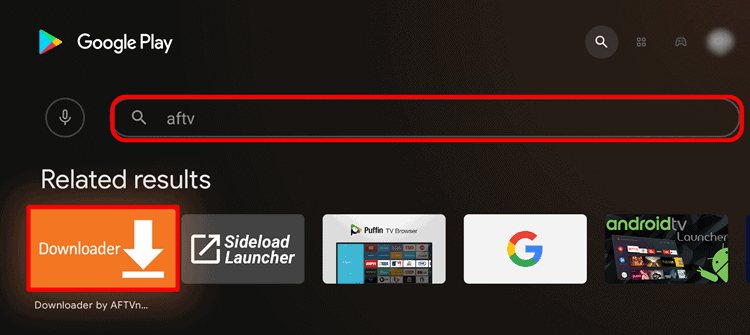
Step 1. Press the Home button on your Smart Remote, then navigate to Play Store.

Step 2. Then select the Search icon in the top-right corner and search for “aftv” or “Downloader”

Step 3. Install the App

Step 4. Click Allow

Step 5. Click OK.

Step 5. Type the following URL exactly as shown here: https://www.iptvsmarters.com/smarters.apk  and click Go.

Downloader app for Fire TV and Android TV now supports built-in Google  Search | AFTVnews

Step 6. Wait for the file to download.

Step 7. Click Install.

Step 8. Click Done.

Step 9. Open the Application and Accept the “License Agreement”.

Step 10. Choose Xtream Codes API (XC Codes API)

Step 11. Enter Your Playlist Details ( Username, Password, and Server URL).

Step 11. Click on “ADD USER”

Now you can Select The Category That you want to watch

Done

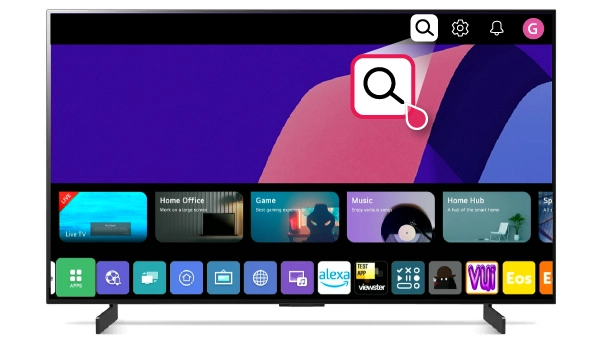
Setup Guide For LG TV

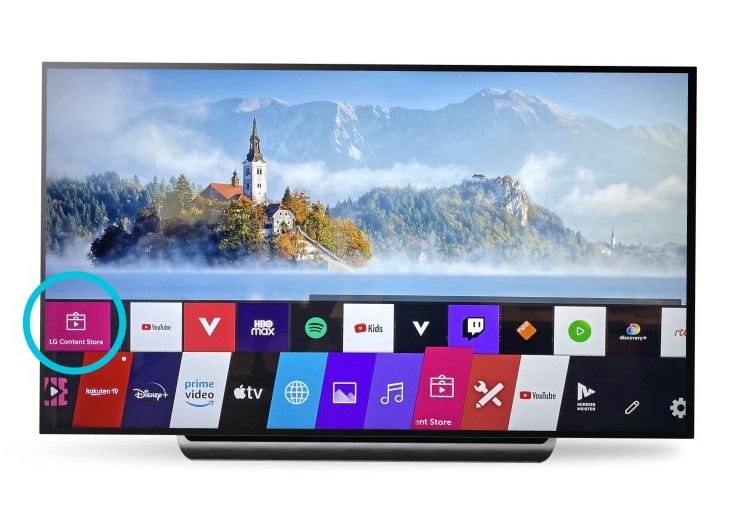
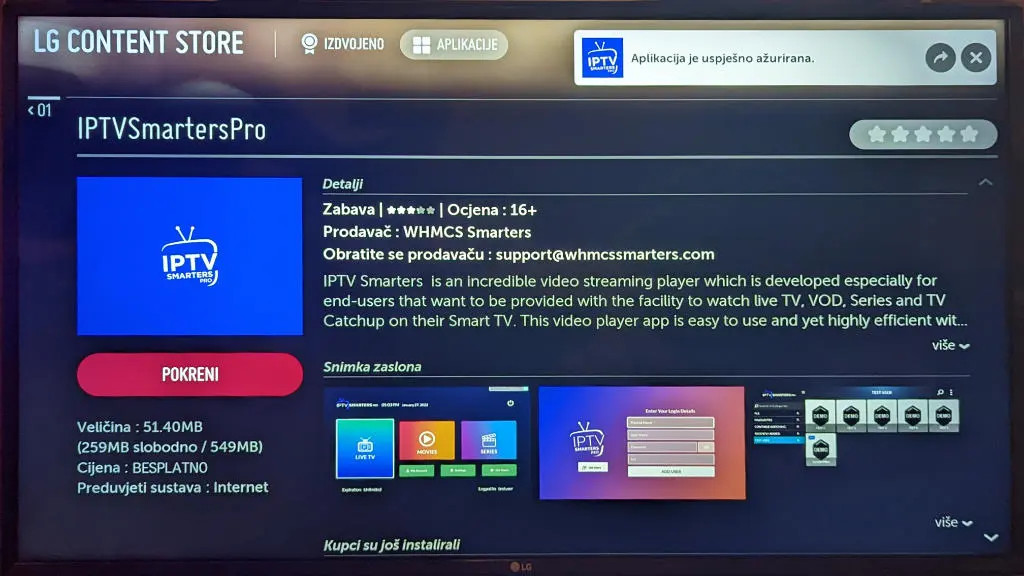
Step 1. Press the Home button on your Smart Remote, then navigate to LG Content Store.

Step 2. Then select the Search icon in the top-right corner.

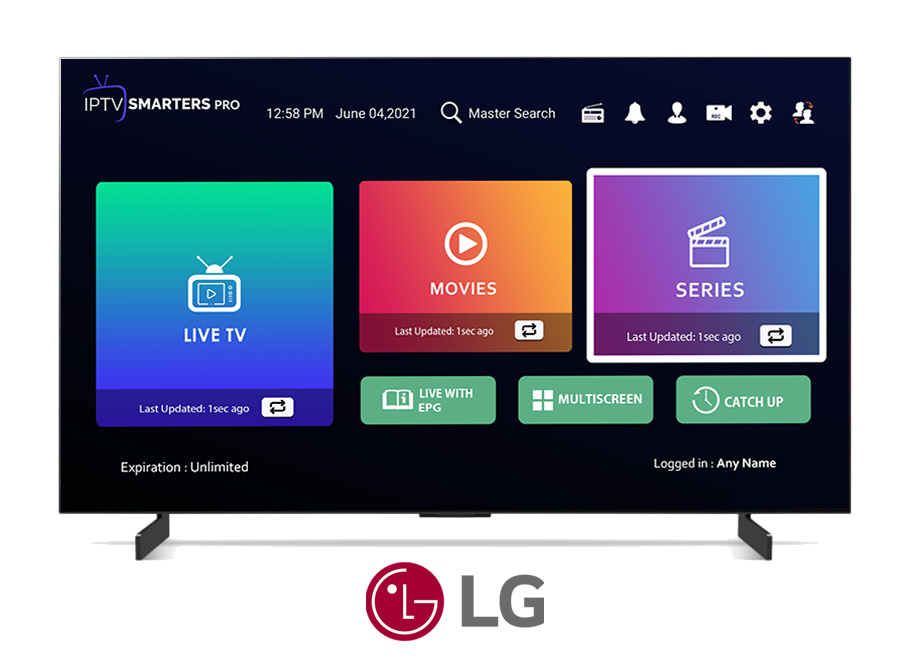
Step 3. Enter the App Name “IPTV Smarters Pro” and Install it.

Step 4. Open the Application and Accept the “License Agreement”.

Step 5. Choose Xtream Codes API (XC Codes API)

Step 6. Enter Your Playlist Details ( Username, Password, and Server URL).

Step 7. Click on “ADD USER”

Now you can Select The Category That you want to watch

Done

Setup Guide For Samsung TV

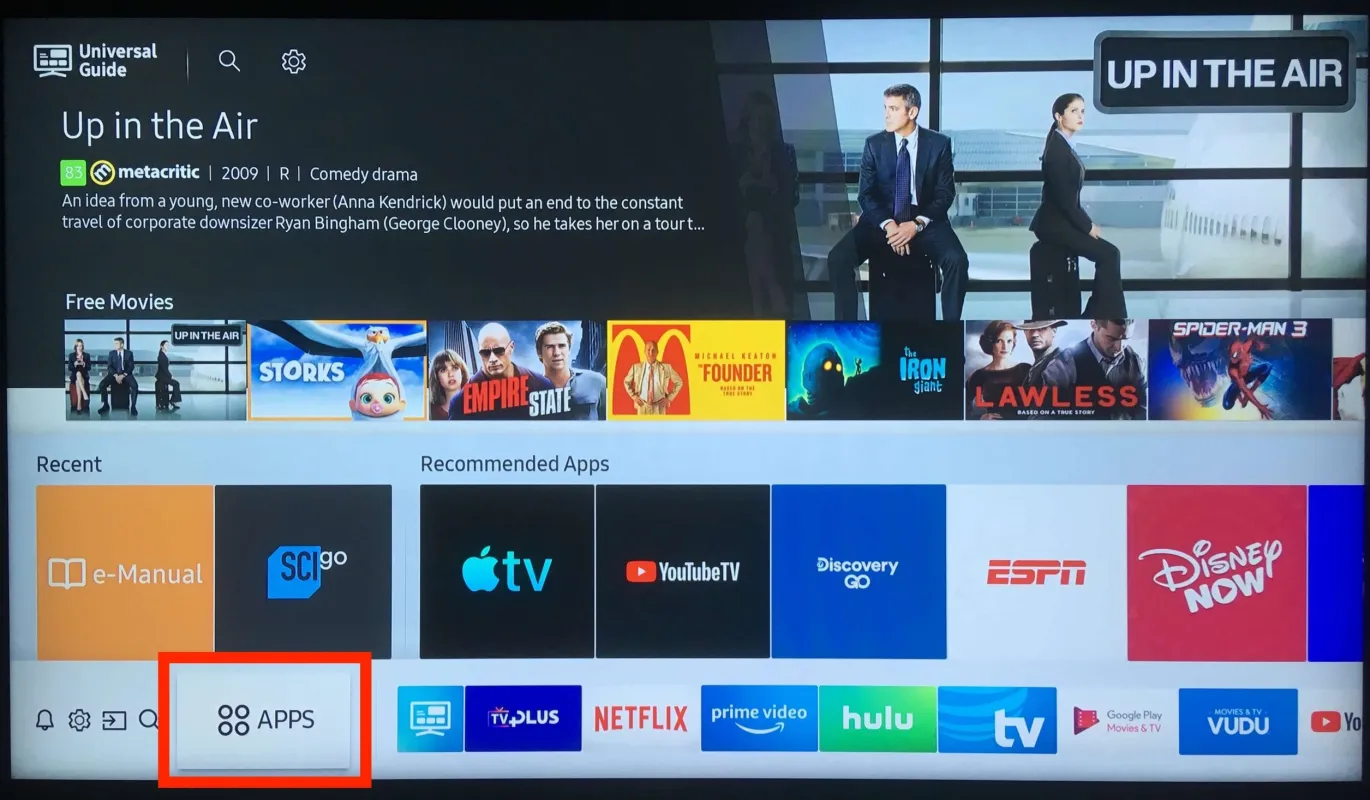
Step 1. Press the Home button on your Smart Remote, then navigate to Apps.

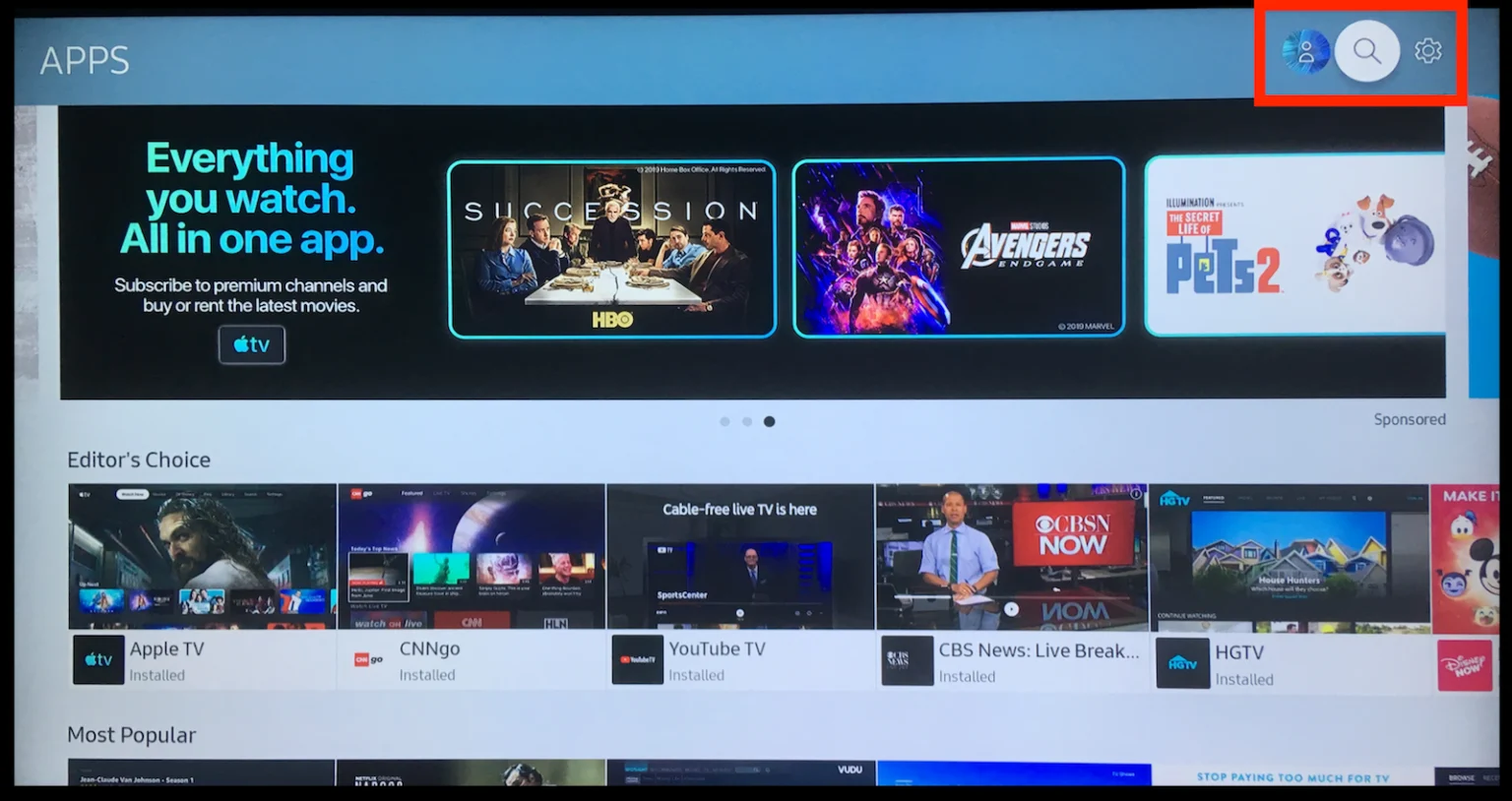
Step 2. Then select the Search icon in the top-right corner.

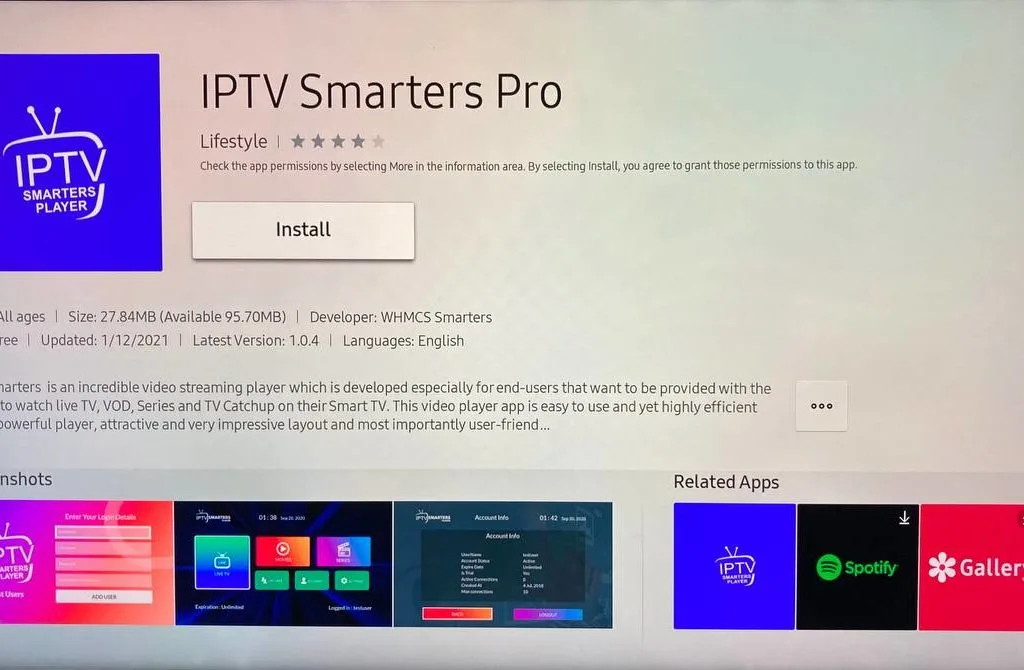
Step 3. Enter the App Name “IPTV Smarters Pro” and Install it.

Step 4. Open the Application and Accept the “License Agreement”.

Step 5. Choose Xtream Codes API (XC Codes API)

Step 6. Enter Your Playlist Details ( Username, Password, and Server URL).

Step 7. Click on “ADD USER”

Now you can Select The Category That you want to watch

Done