Refund and Returns Policy

Thank you for choosing IPTVHORIZON for your ultimate entertainment experience. Your satisfaction is our priority, and we want to ensure a seamless journey into the world of IPTV.

Before making a purchase, we encourage you to request a trial account. Test our service and ensure it aligns with your expectations before committing to a long-term subscription.

1. Refund Eligibility

Refunds for our IPTV subscriptions are subject to specific conditions:

  • You may request a refund within 7 days from the date of purchase. After 7 days, no complete refund can be processed.
  • All other refund requests will be returned partially according to the used period of the subscription, provided there was an issue from our end that we couldn’t fix within 72 hours. Our support team will contact users in all refund cases.
  • For clarity, refunds will only be granted for the unused period of the subscription, applicable to all plans, and if it meets the refund requirements.
  • After 7 days, Refunds won’t be granted for active usage, instead, refunds will be processed only for the unused period of the subscription.

We will not send refunds nor make partial refunds if:

  • Customer dissatisfaction with the channel line-up or a change of mind without a valid reason.
  • Customer refusal to apply the solutions provided in case of any issues.
  • Misuse or abuse detected.

2. How to Request a Refund :

Initiate a refund request by reaching out to our responsive customer support team via our email at or through our WhatsApp chat. Share your order details and provide a brief explanation of the issue. We are committed to prompt assessments and responses.

3. Refund Processing :

Upon approval, refunds will be processed within 1-2 days to the original payment method. Allow additional time for the refund to reflect in your account.

4. Late or Missing Refunds :

If you haven’t received a refund within the specified period, first, check your account. If the issue persists, promptly contact us.

5. Service Disruptions :

While our servers are generally stable, occasional freezing or non-functional channels may occur due to various reasons. However, these issues are not permanent, and our expert engineers are constantly working to resolve them.

Most of the time, these temporary issues are caused by:

  • Customer internet fluctuations.
  • Issues with the box/apps/customer setup in general.
  • Problems with your Internet Service Provider (ISP).
  • Channel downtime from the server end.
  • Customer changes his/her mind and wishes to withdraw or switch between servers.
  • Server updates/restarts from our end (weekly performance maintenance).

In the event a user/customer is unable to watch their IPTV subscription plan for 72 hours or more due to server issues or any problems caused by us:

We are committed to ensuring your satisfaction. In such cases, we will either provide a complete refund of the package price or add all lost time on top of your subscription for free. Additionally, we may offer some extra bonuses.

6. Contact Us :

Should you have any questions or require assistance regarding our refund policy, please feel free to contact our customer support team.

Online support

Do you have another question? Send us a message

Setup Guide For Windows/Mac

Windows: 
Download IPTV Smarters app through this URL : https://www.iptvsmarters.com/download?download=windows_app

MAC :
Download IPTV Smarters app through this URL : https://www.iptvsmarters.com/download?download=mac

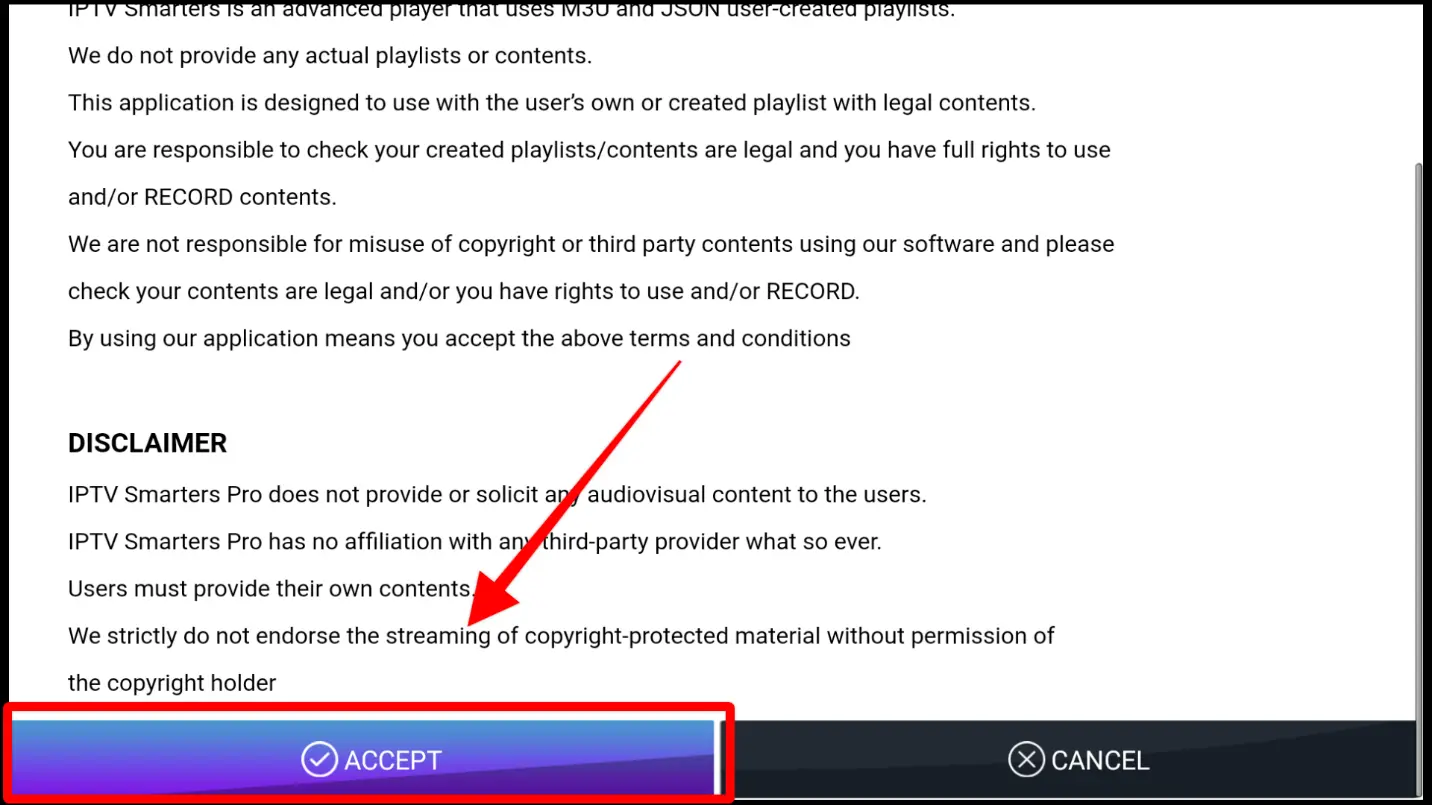
Step 2. Open the Application and Accept the “License Agreement”.

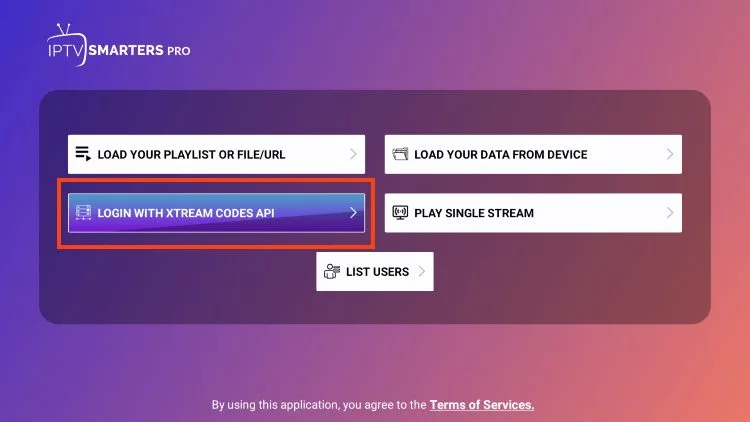
Step 3. Choose Xtream Codes API (XC Codes API)

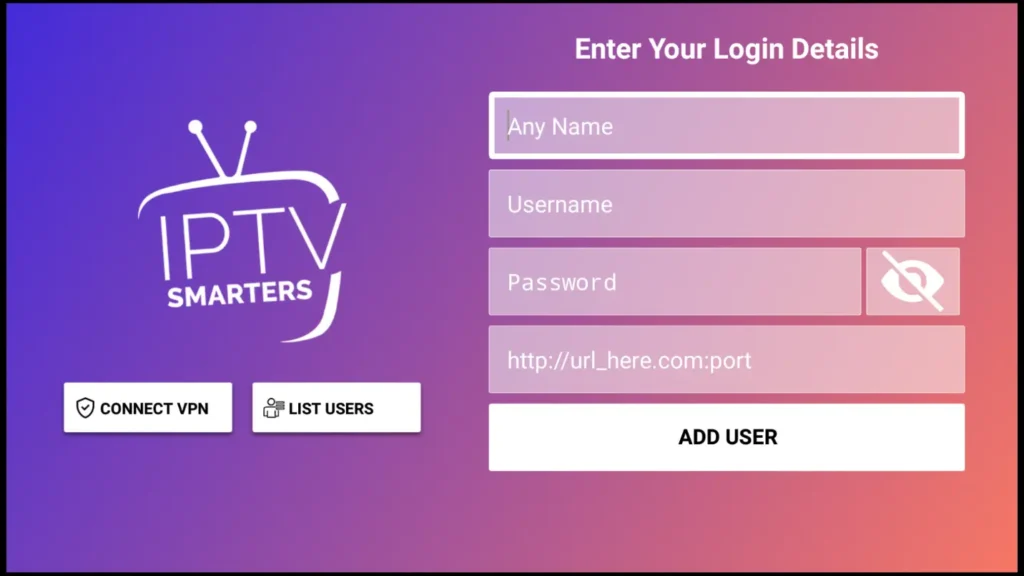
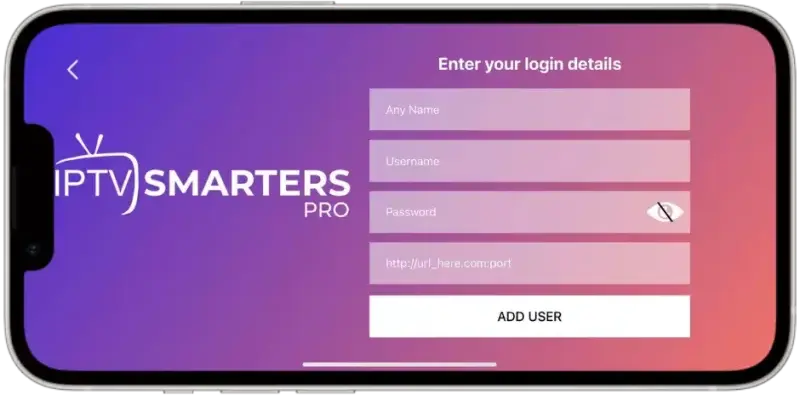
Step 4. Enter Your Playlist Details ( Username, Password, and HOST URL), and Click ADD USER.

Step 8. Wait For The Playlist To Be Downloaded 

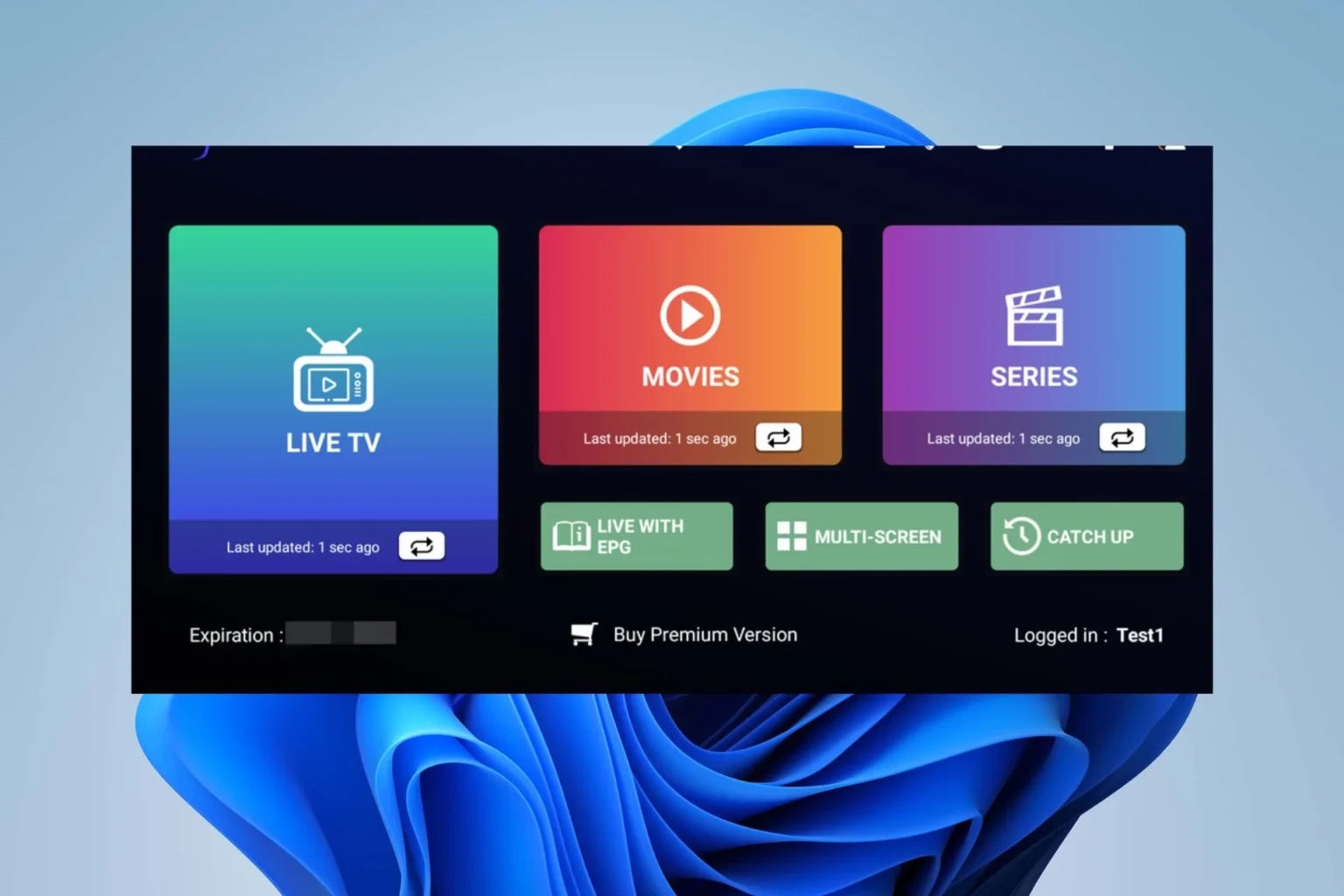
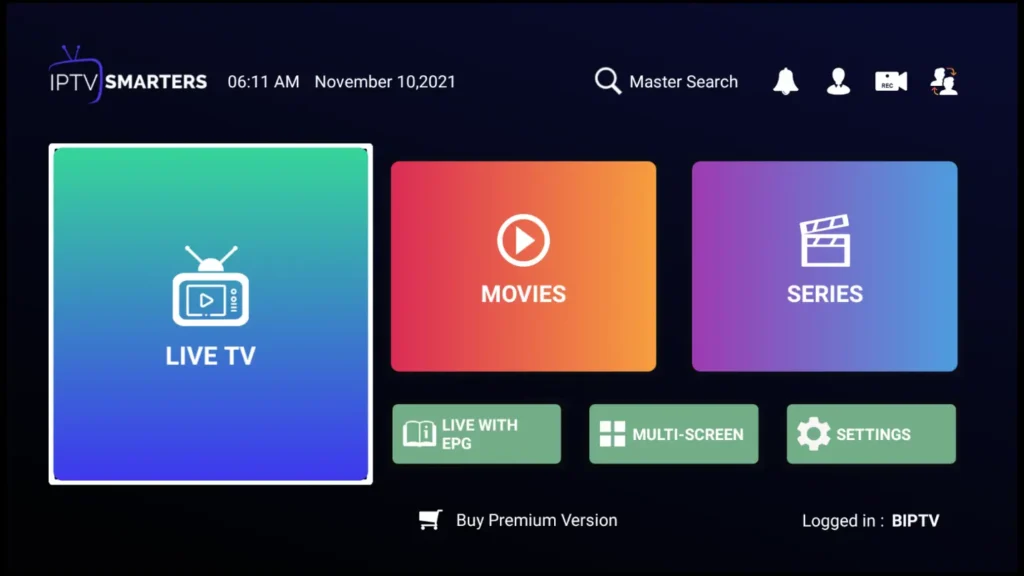
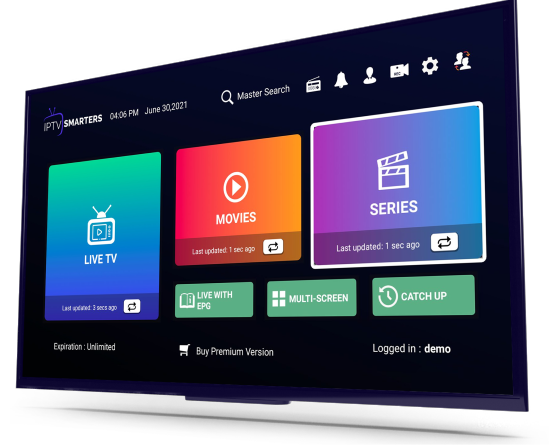
Step 8. Now you can Select The Category That you want to watch

Done

Setup Guide For MAG/STB

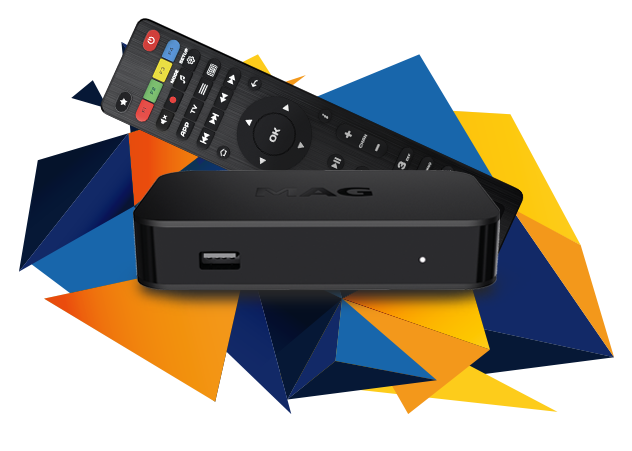
Step 1: Send us the MAC Address of your MAG via Whatsapp

Step 2: After making the payment, we will send you the portal link

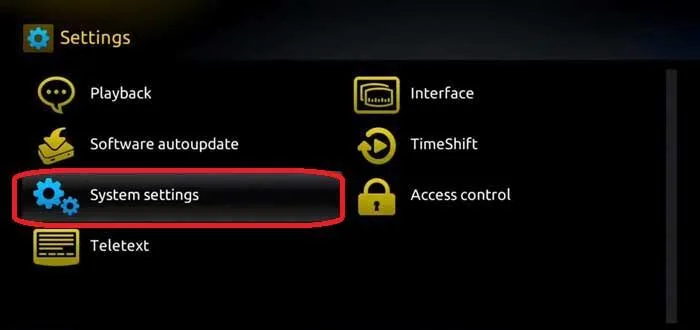
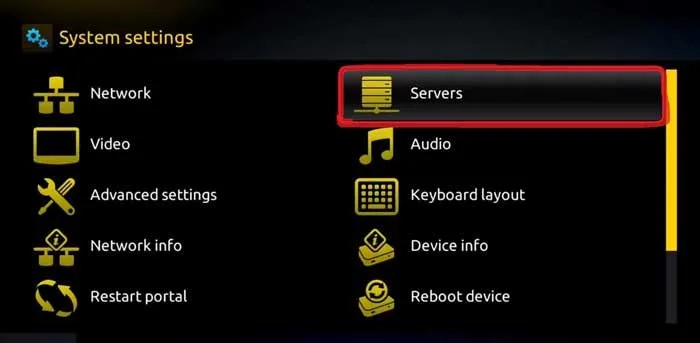
Step 3: Launch System settings.

Step 4: Navigate to the Servers option.

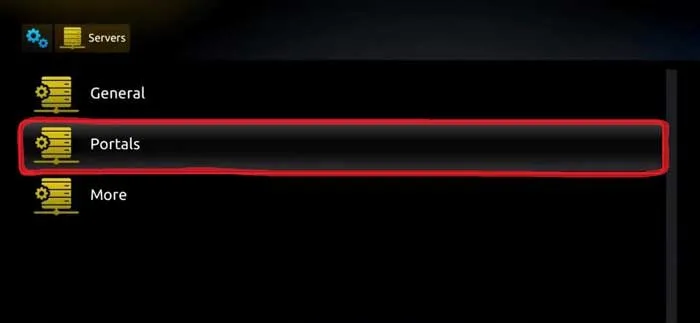
Step 5: Select the “Portals” option.

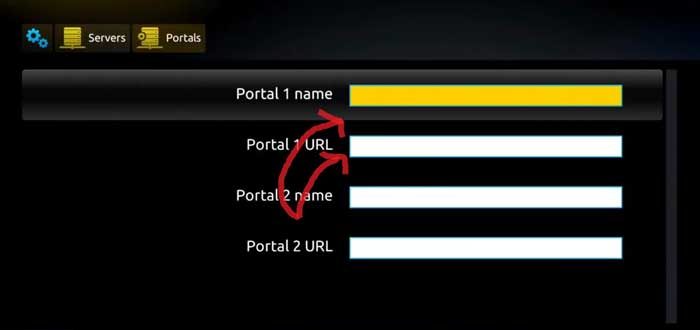
Step 7. Give the Portal a name then enter the link we have provided you 

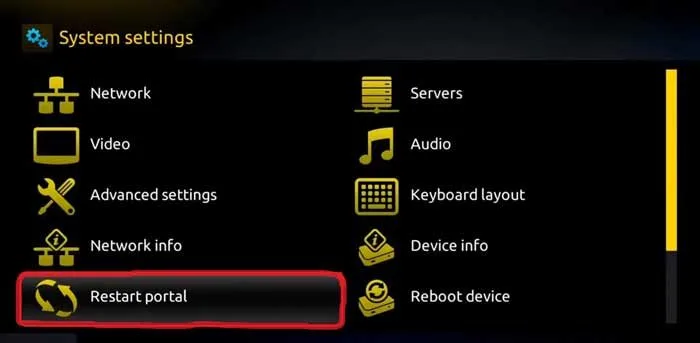
Step 8. Now, go back to the System settings and click on the restart portal option.

Done

Setup Guide For IOS Devices
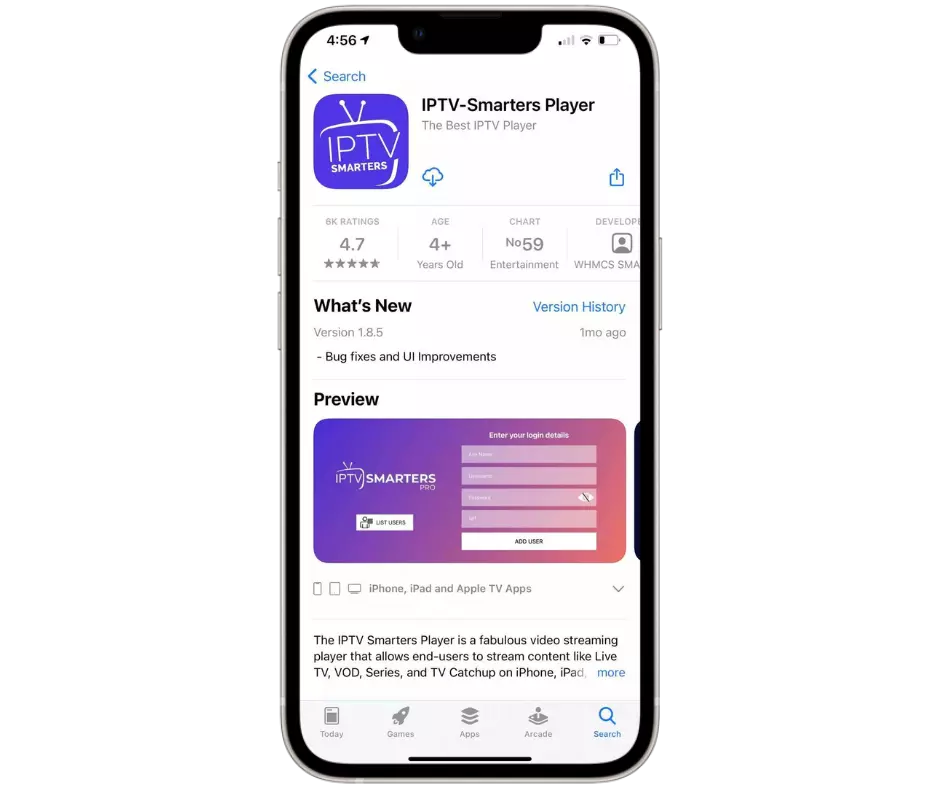
Step 1: Start by downloading IPTV Smarters Lite app  through this URL:  
             https://apps.apple.com/in/app/smarters-player-lite/id1628995509

Step 2. Open the Application and Accept the “License Agreement”.

Step 3. Choose Xtream Codes API (XC Codes API)

Step 4. Enter Your Playlist Details ( Username, Password, and HOST URL), and Click ADD USER.

Step 8. Wait For The Playlist To Be Downloaded 

Step 8. Now you can Select The Category That you want to watch

Done

Setup Guide For Android

Step 1: Start by downloading IPTV Smarters app  through this URL:
            https://www.iptvsmarters.com/smarters.apk

Step 2. Open the Application and Accept the “License Agreement”.

Step 3. Choose Xtream Codes API (XC Codes API)

Step 4. Enter Your Playlist Details ( Username, Password, and HOST URL).

Step 7. Click on “ADD USER”

Now you can Select The Category That you want to watch

Done

Setup Guide For The FireStick

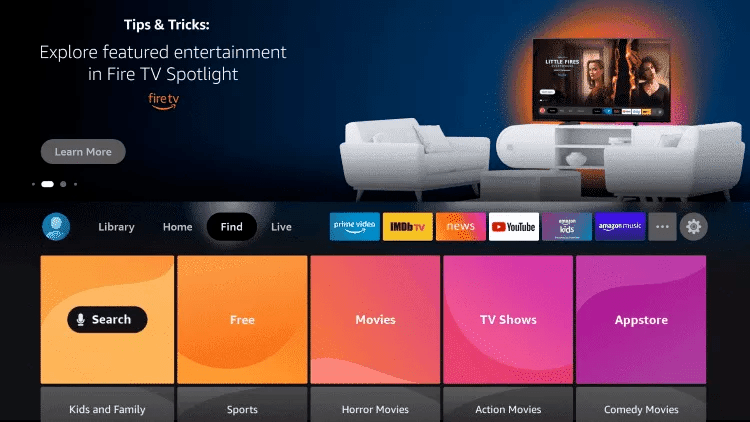
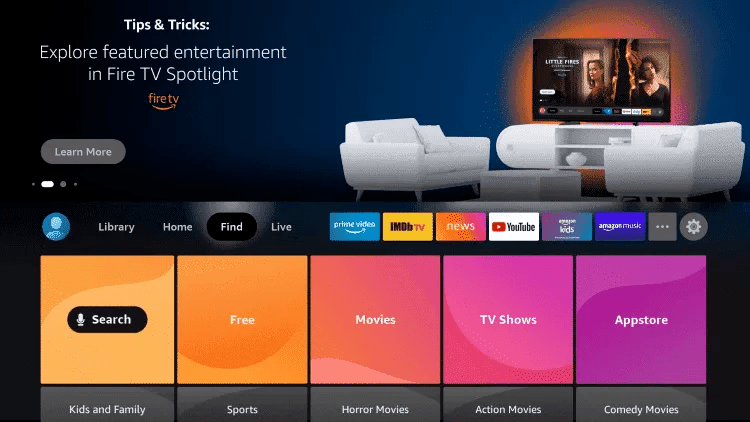
1. From the home screen of your device, hover over the Find option.

2. Click Search.

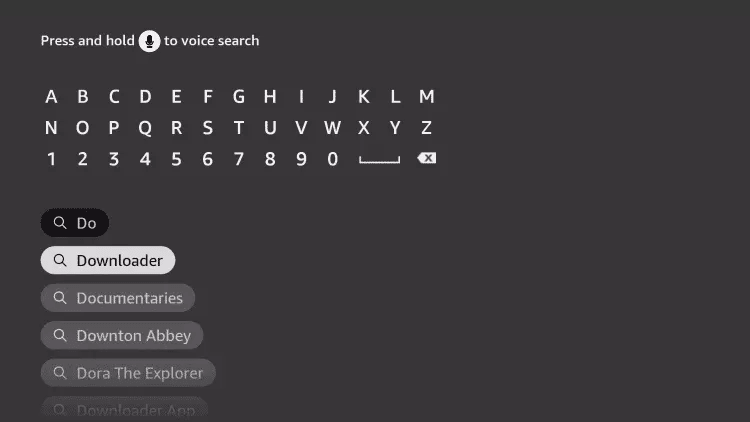
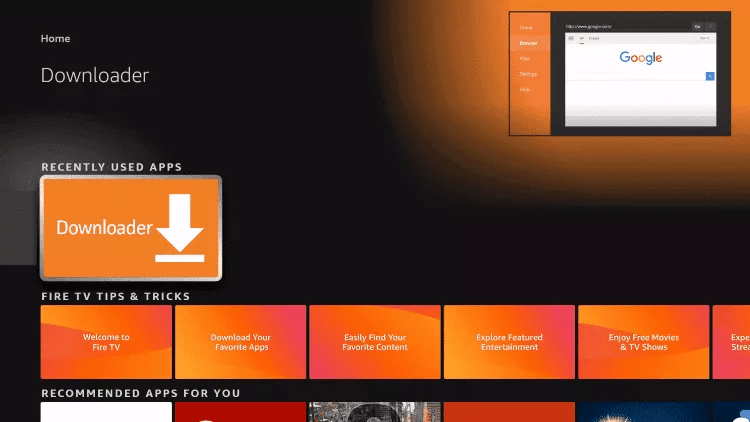
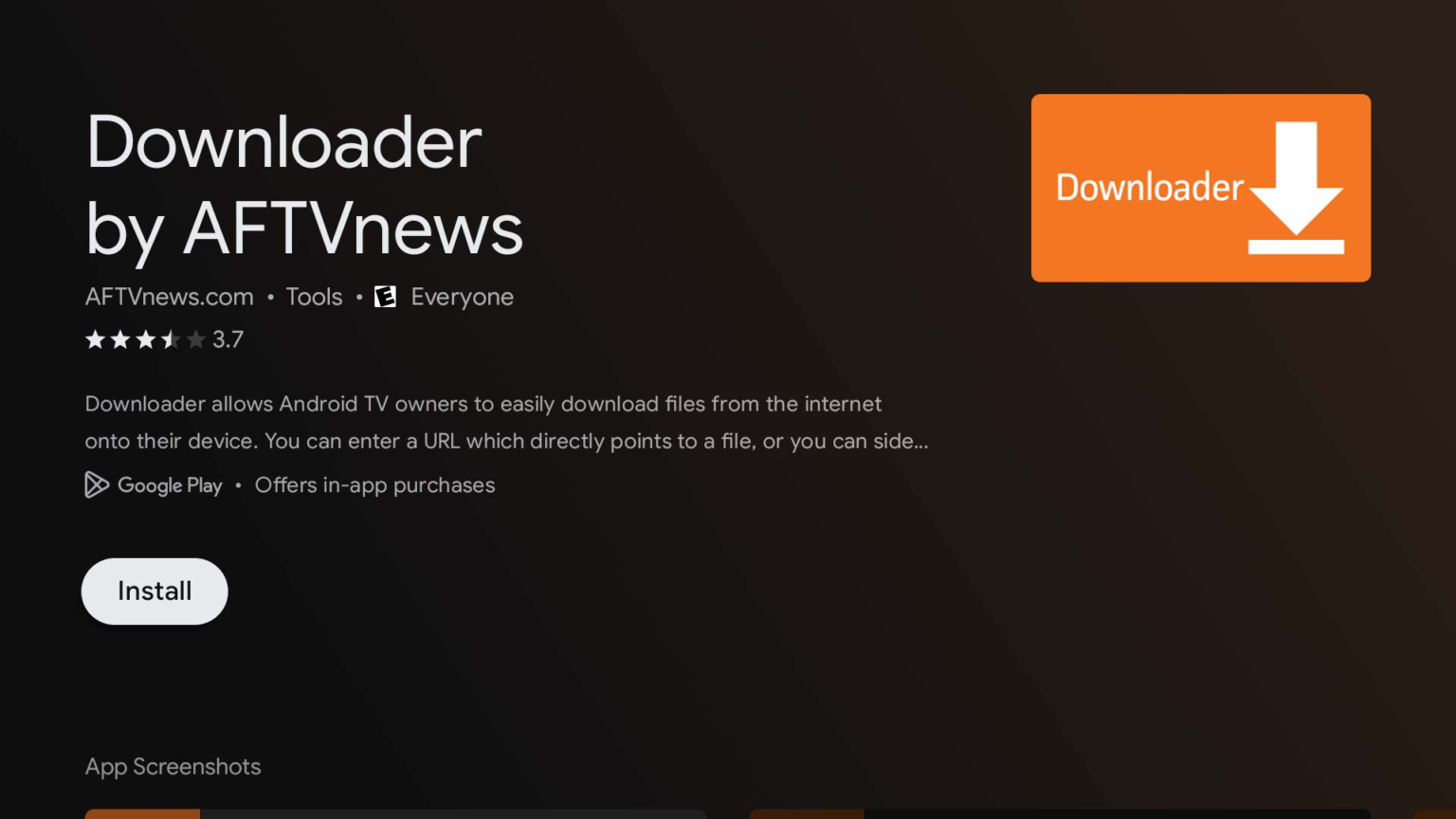
3. Search for and select Downloader.

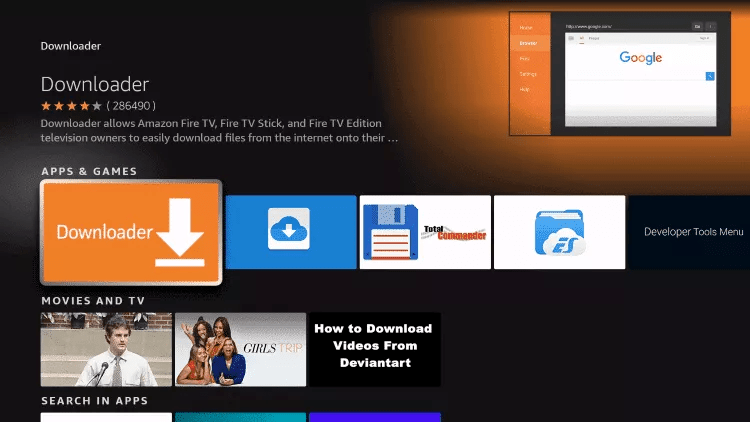
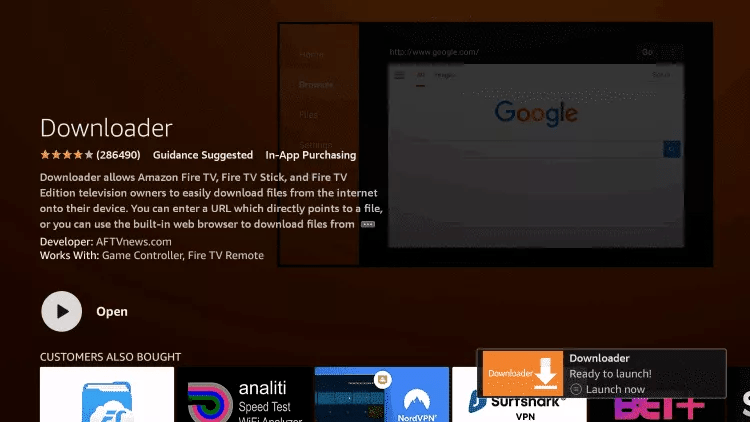
4. Choose the Downloader app.

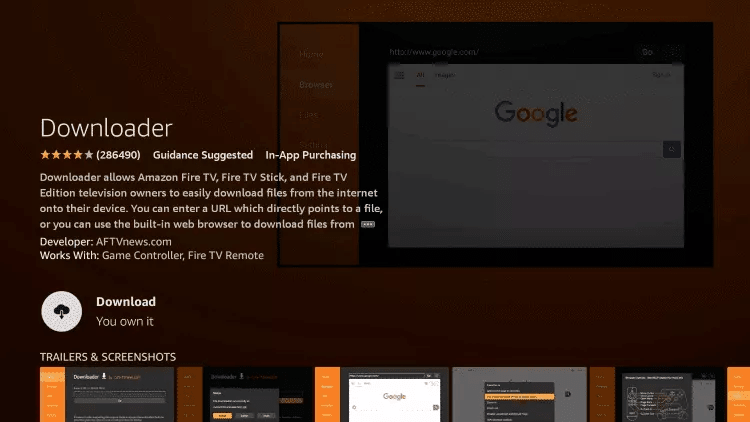
5. Click Download.

6. Once the app finishes installing click Open.

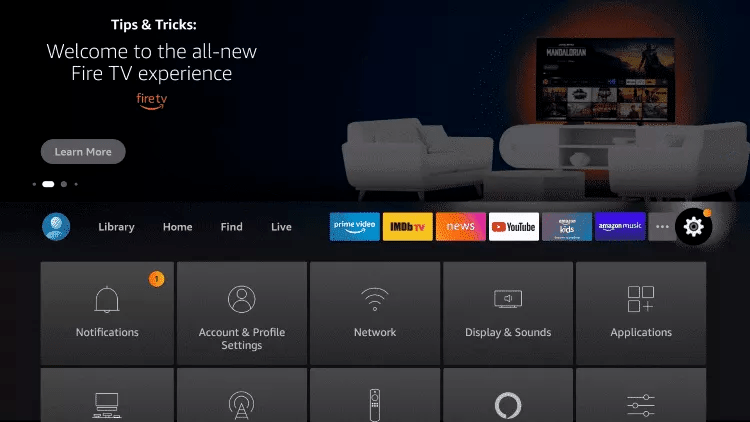
7. Return to the home screen and open Settings.

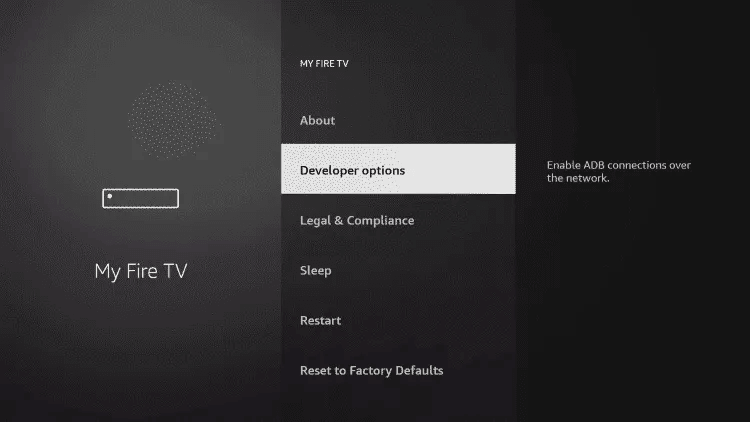
8. Click My Fire TV.

9. Choose Developer options.

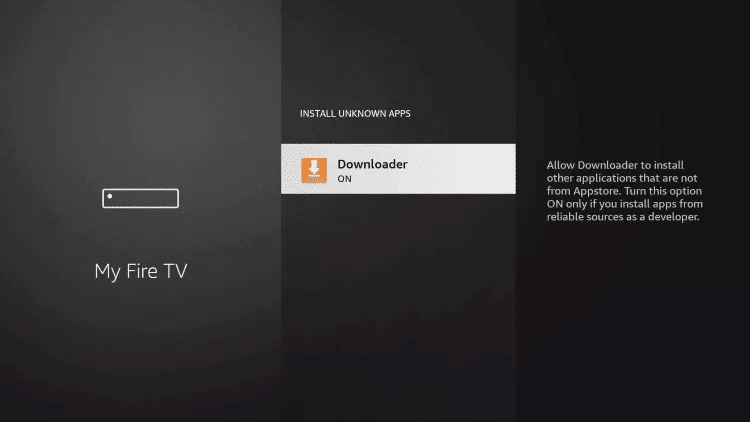
10. Click Install unknown apps.

11. Find the Downloader app and click it.

12. This will turn Unknown Sources to On for the Downloader app. This will enable side-loading on your device.

13. Launch Downloader.

14. Click Allow.

15. Click OK.

16. Type the following URL exactly as shown here: https://www.iptvsmarters.com/smarters.apk  and click Go.

Downloader app for Fire TV and Android TV now supports built-in Google Search | AFTVnews

17. Wait for file to download

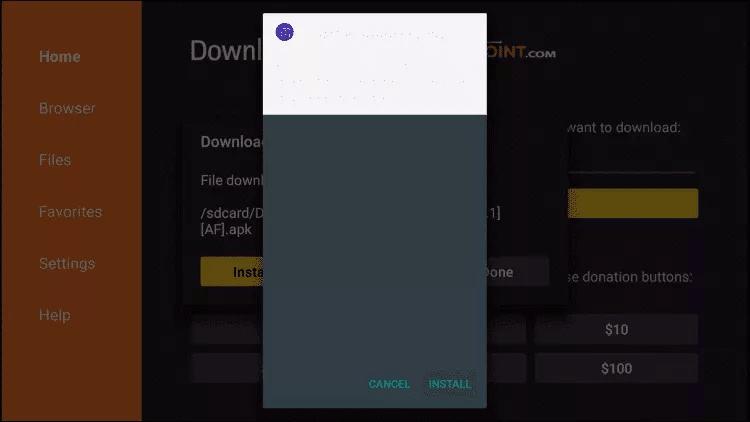
18. Click Install.

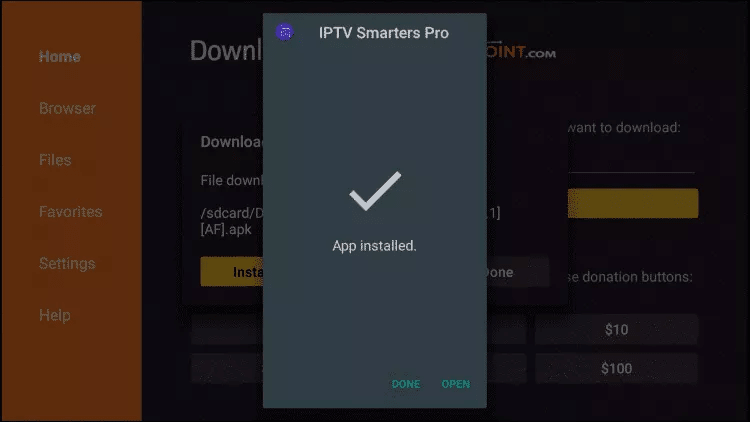
19. Open The App.

21. Install the App

Step 22. Choose Xtream Codes API (XC Codes API)

Step 23. Enter Your Playlist Details ( Username, Password, and Server URL).

Step 24. Click on “ADD USER”

Now you can Select The Category That you want to watch

Done

Setup Guide For Android TV

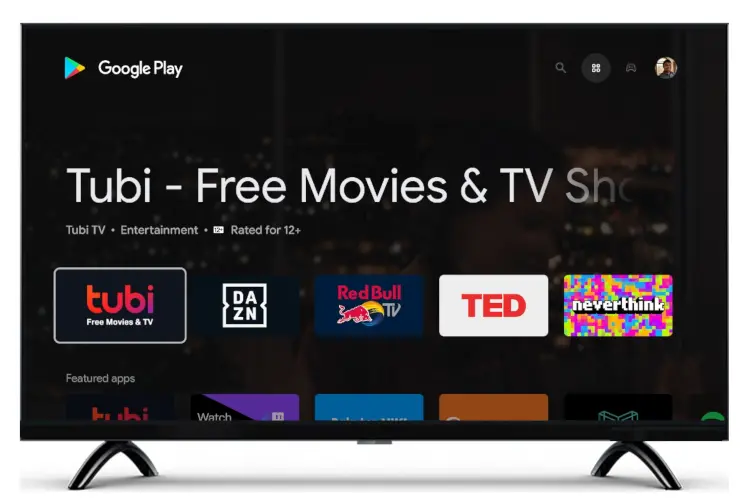
Step 1. Press the Home button on your Smart Remote, then navigate to Play Store.

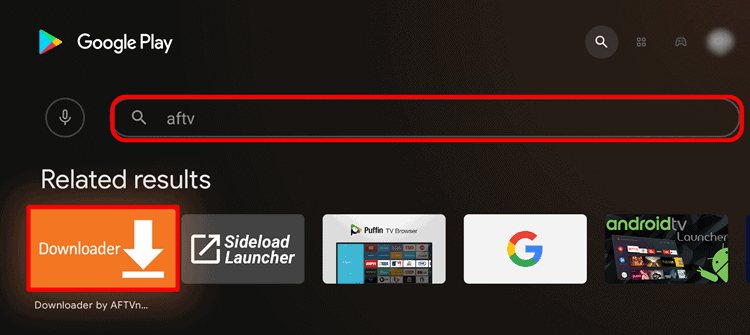
Step 2. Then select the Search icon in the top-right corner and search for “aftv” or “Downloader”

Step 3. Install the App

Step 4. Click Allow

Step 5. Click OK.

Step 5. Type the following URL exactly as shown here: https://www.iptvsmarters.com/smarters.apk  and click Go.

Downloader app for Fire TV and Android TV now supports built-in Google  Search | AFTVnews

Step 6. Wait for the file to download.

Step 7. Click Install.

Step 8. Click Done.

Step 9. Open the Application and Accept the “License Agreement”.

Step 10. Choose Xtream Codes API (XC Codes API)

Step 11. Enter Your Playlist Details ( Username, Password, and Server URL).

Step 11. Click on “ADD USER”

Now you can Select The Category That you want to watch

Done

Setup Guide For LG TV

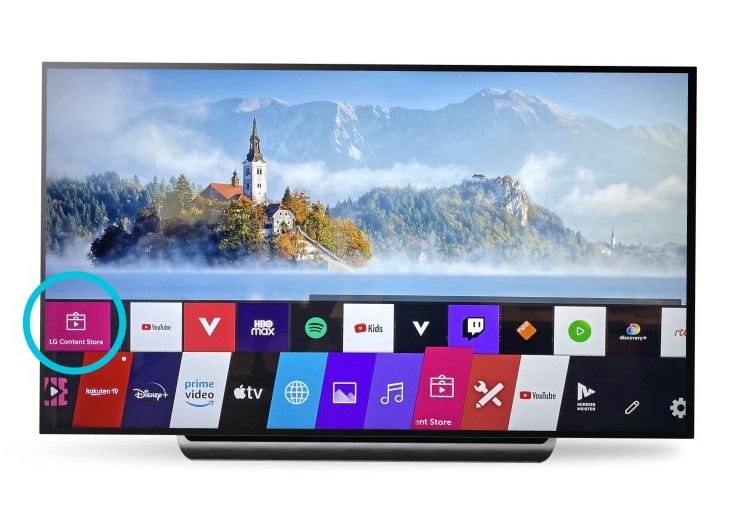
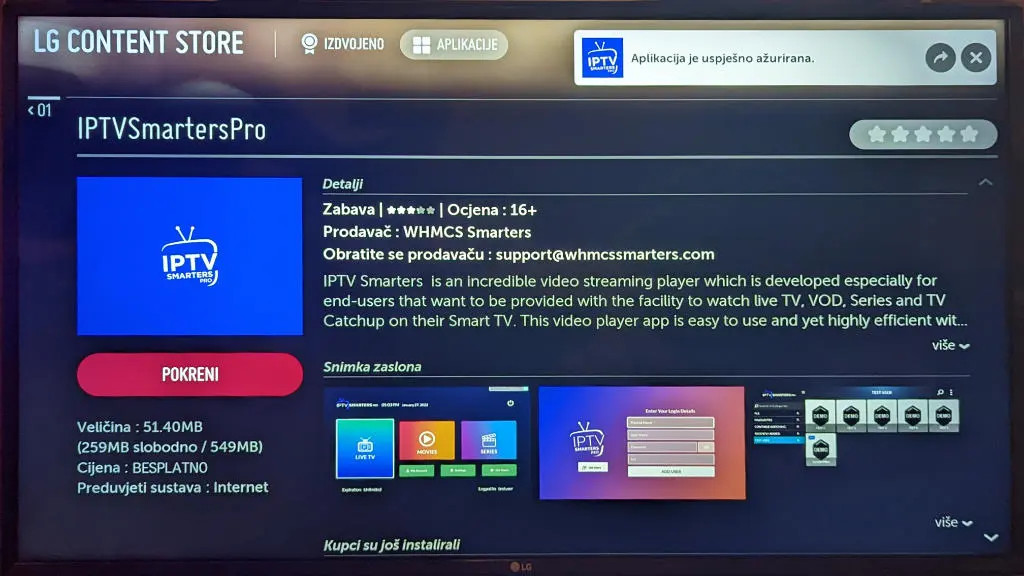
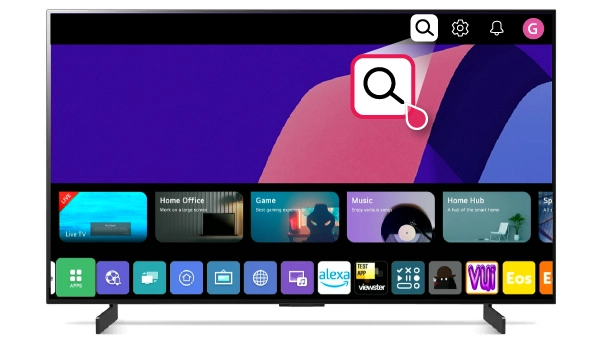
Step 1. Press the Home button on your Smart Remote, then navigate to LG Content Store.

Step 2. Then select the Search icon in the top-right corner.

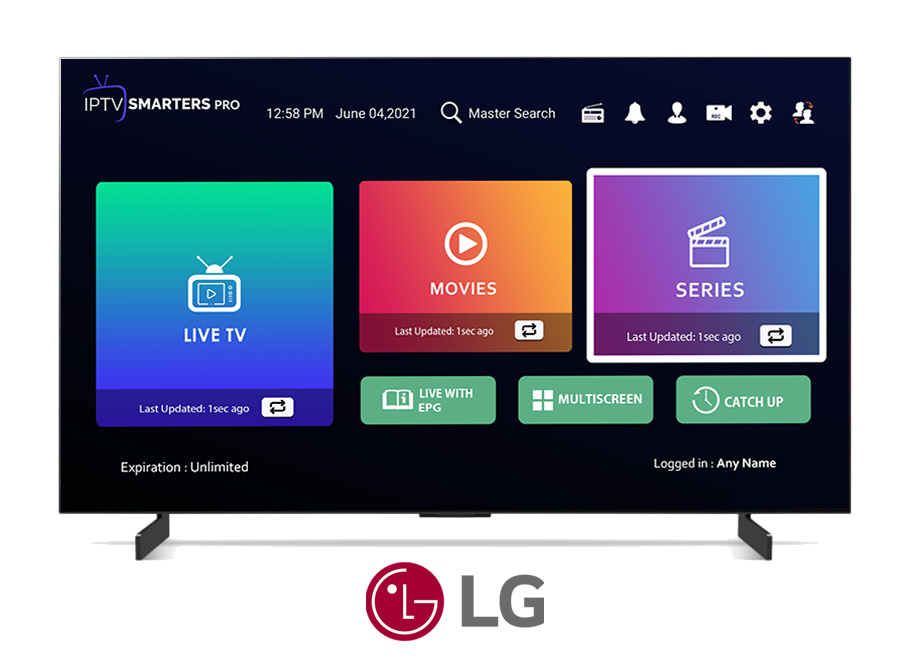
Step 3. Enter the App Name “IPTV Smarters Pro” and Install it.

Step 4. Open the Application and Accept the “License Agreement”.

Step 5. Choose Xtream Codes API (XC Codes API)

Step 6. Enter Your Playlist Details ( Username, Password, and Server URL).

Step 7. Click on “ADD USER”

Now you can Select The Category That you want to watch

Done

Setup Guide For Samsung TV

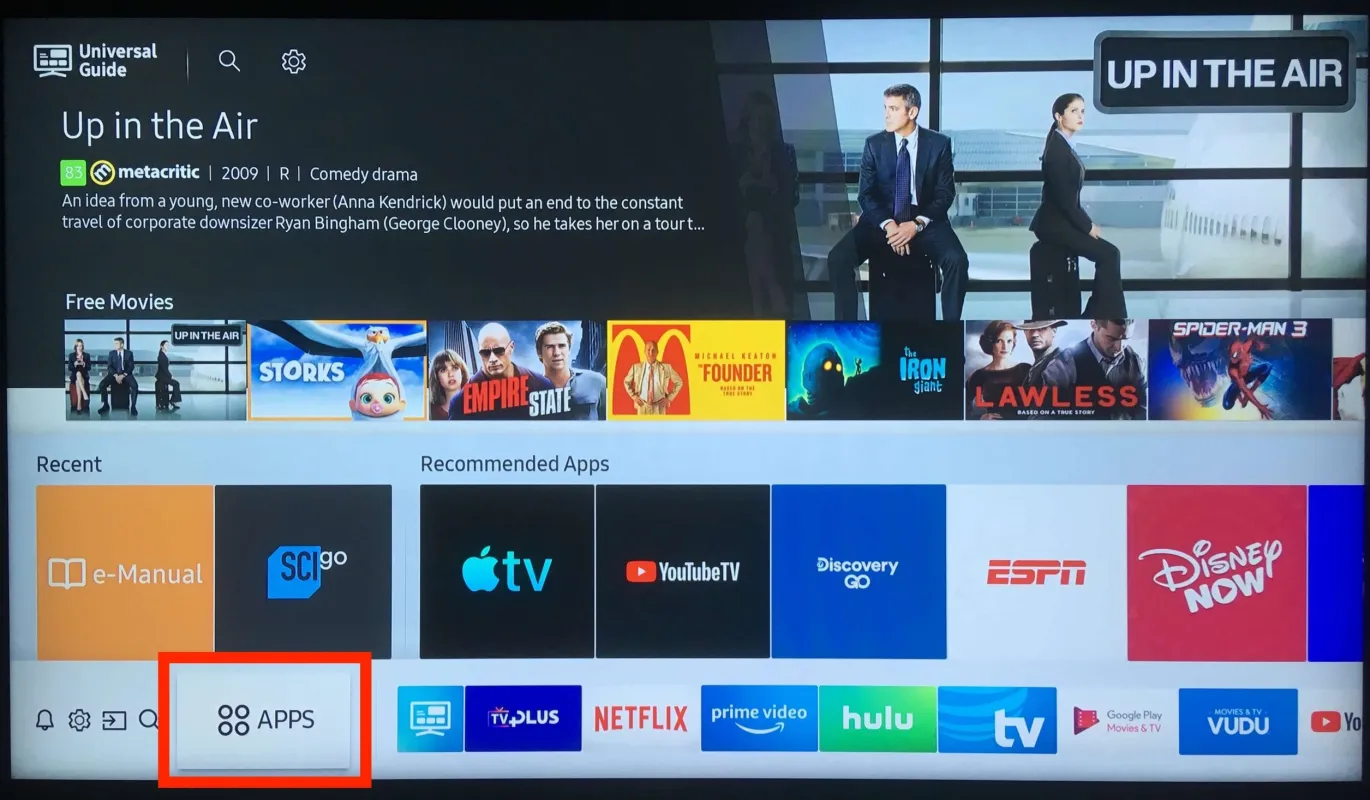
Step 1. Press the Home button on your Smart Remote, then navigate to Apps.

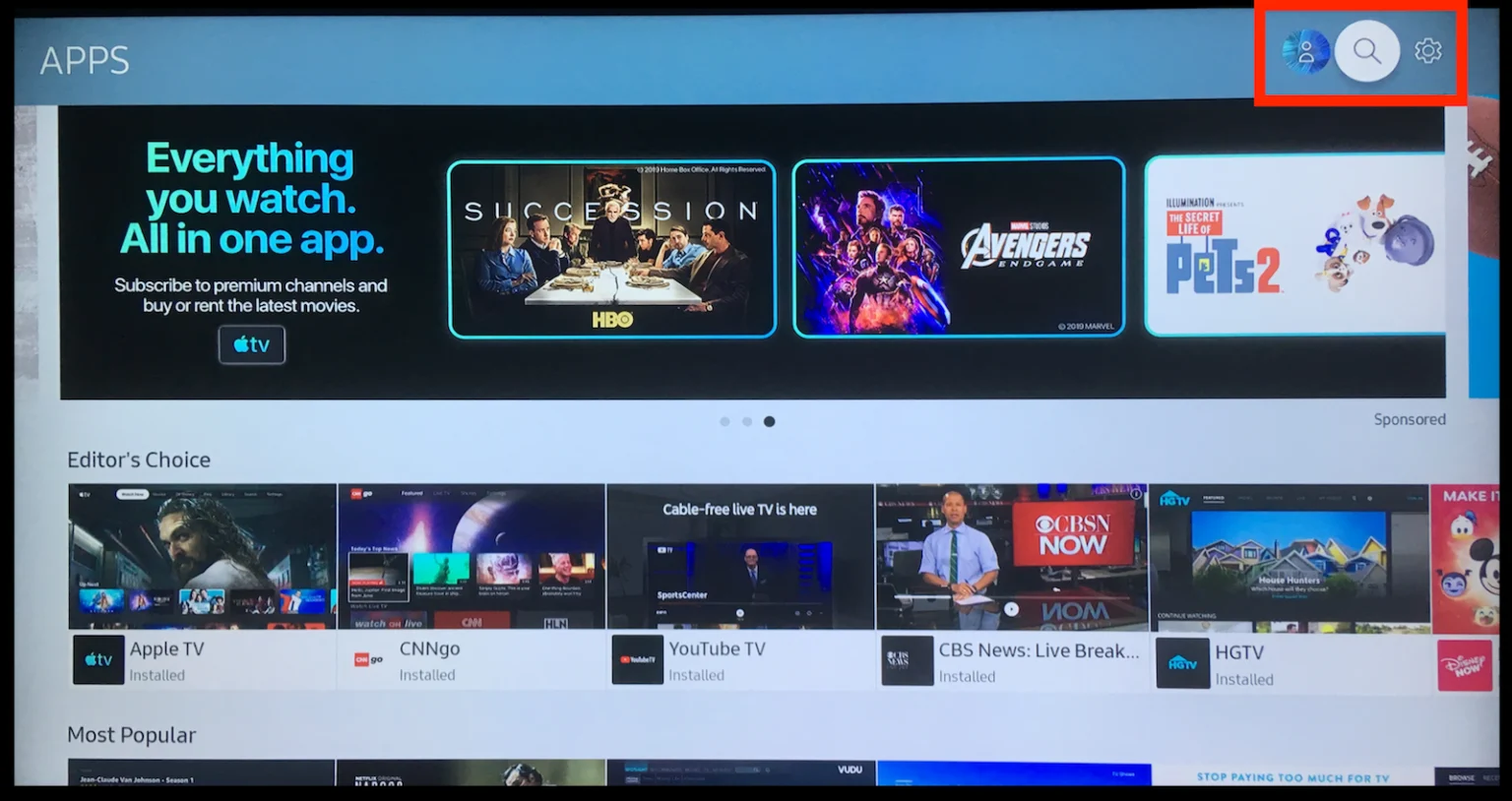
Step 2. Then select the Search icon in the top-right corner.

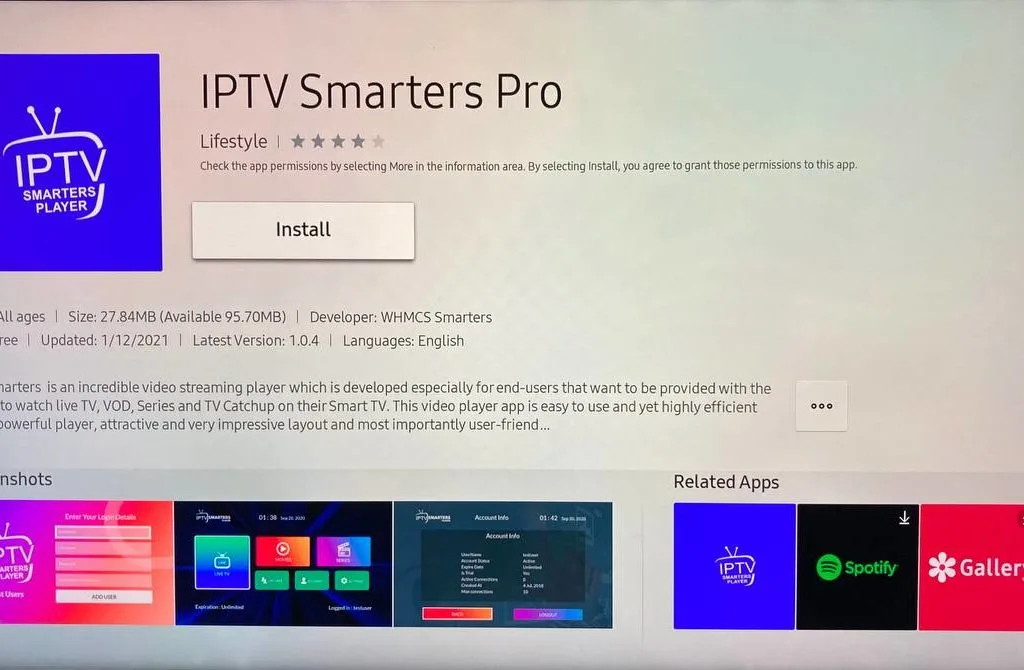
Step 3. Enter the App Name “IPTV Smarters Pro” and Install it.

Step 4. Open the Application and Accept the “License Agreement”.

Step 5. Choose Xtream Codes API (XC Codes API)

Step 6. Enter Your Playlist Details ( Username, Password, and Server URL).

Step 7. Click on “ADD USER”

Now you can Select The Category That you want to watch

Done