

Best Iptv Subscription Service
IPTV Subscription with the Best Quality.
Unlimited movies and series.
All that you Love in One IPTV Subscription.






















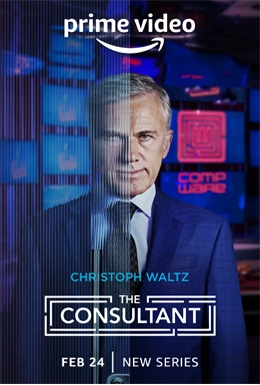
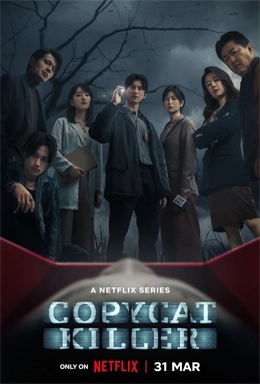
Popular movies and series
top TV shows, the latest hit movies, children’s shows, full seasons of exclusive series, and everything else you want


























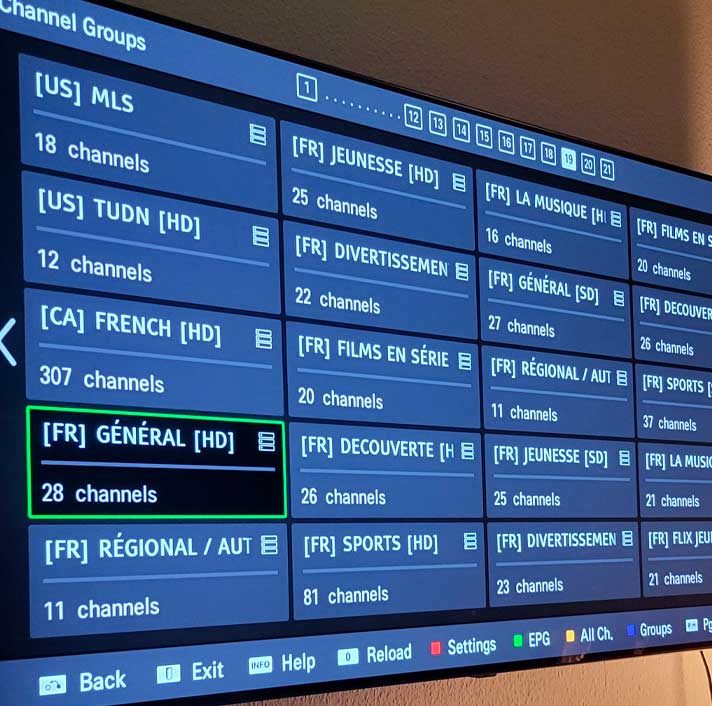
Sports and Top Leagues
Unlimited streaming of your favorite sports and leagues










Choose Your Plan
€13
- All device supported
- 4K, FHD, HD & SD
- +17.000 Channels
- +95.000 Vod
- Tv Guide ( EPG )
- Anti Freeze System
- Support 24/7
- Daily Updates
- Adult Channels
3 Days Money-Back-guarantee
€25
- All device supported
- 4K, FHD, HD & SD
- +17.000 Channels
- +95.000 Vod
- Tv Guide ( EPG )
- Anti Freeze System
- Support 24/7
- Daily Updates
- Adult Channels
7 Days Money-Back-guarantee
€39
- All device supported
- 4K, FHD, HD & SD
- +17.000 Channels
- +95.000 Vod
- Tv Guide ( EPG )
- Anti Freeze System
- Support 24/7
- Daily Updates
- Adult Channels
7 Days Money-Back-guarantee
€59
- All device supported
- 4K, FHD, HD & SD
- +17.000 Channels
- +95.000 Vod
- Tv Guide ( EPG )
- Anti Freeze System
- Support 24/7
- Daily Updates
- Adult Channels
7 Days Money-Back-guarantee
€20
- All device supported
- 4K, FHD, HD & SD
- +17.000 Channels
- +95.000 Vod
- Tv Guide ( EPG )
- Anti Freeze System
- Support 24/7
- Daily Updates
- Adult Channels
3 Days Money-Back-guarantee
€45
- All device supported
- 4K, FHD, HD & SD
- +17.000 Channels
- +95.000 Vod
- Tv Guide ( EPG )
- Anti Freeze System
- Support 24/7
- Daily Updates
- Adult Channels
7 Days Money-Back-guarantee
€65
- All device supported
- 4K, FHD, HD & SD
- +17.000 Channels
- +95.000 Vod
- Tv Guide ( EPG )
- Anti Freeze System
- Support 24/7
- Daily Updates
- Adult Channels
7 Days Money-Back-guarantee
€90
- All device supported
- 4K, FHD, HD & SD
- +17.000 Channels
- +95.000 Vod
- Tv Guide ( EPG )
- Anti Freeze System
- Support 24/7
- Daily Updates
- Adult Channels
7 Days Money-Back-guarantee
Why Subscribe To Our Service
Premium Value On All Plan
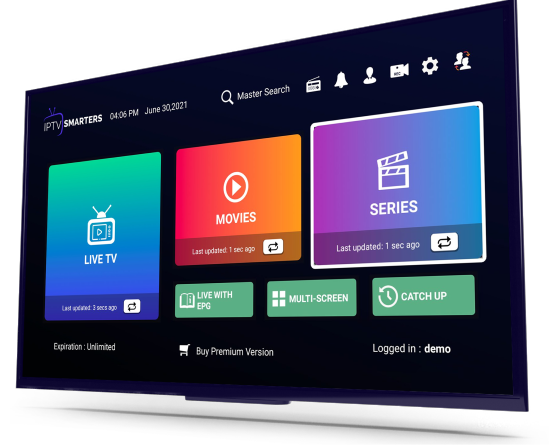
Work on all devices
You can watch all your favorite channels and VOD on any device you want.
Fast and Stable Server
We have hundreds of servers around the world using CDN technology.
Friendly 24/7 Support
Facing issues or need assistance? Contact us, as we are here to help and support you 24/7
Our Users Love Our Server!
"Between Netflix, HBO, Amazon Prime and expensive sports channels, my monthly bill was a pain! Now I have everything I want at a lower price."
Stephen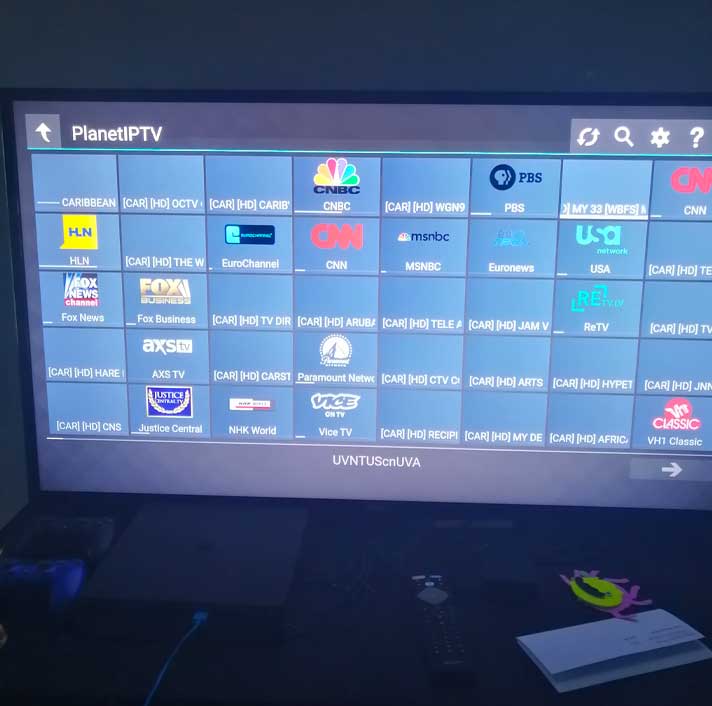
"I have bough three plans from this site
for now there is no problem, the quality of the channels is good, and the service is amazing "

"Everything works perfectly I even found the
Caribbean bouquet that I need, I am very
satisfied.
Thank you very much for your support!"
"Great iptv service. The channels are of very good quality and the customer service is Great.
I highly recommend!!"
Frequently Asked Questions
duplicate
duplicate
What do I need to get started?
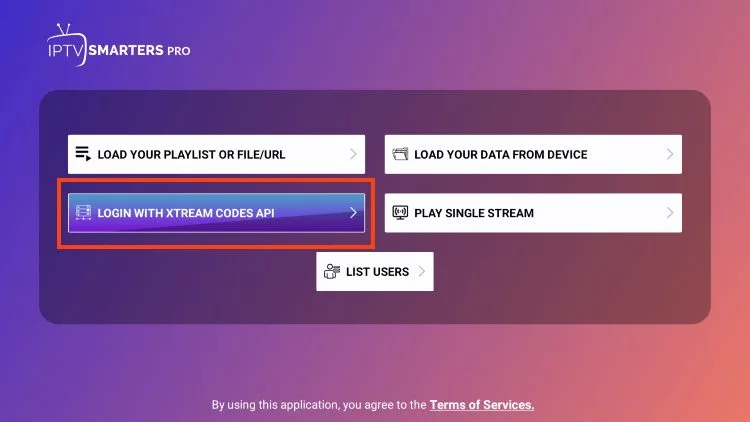
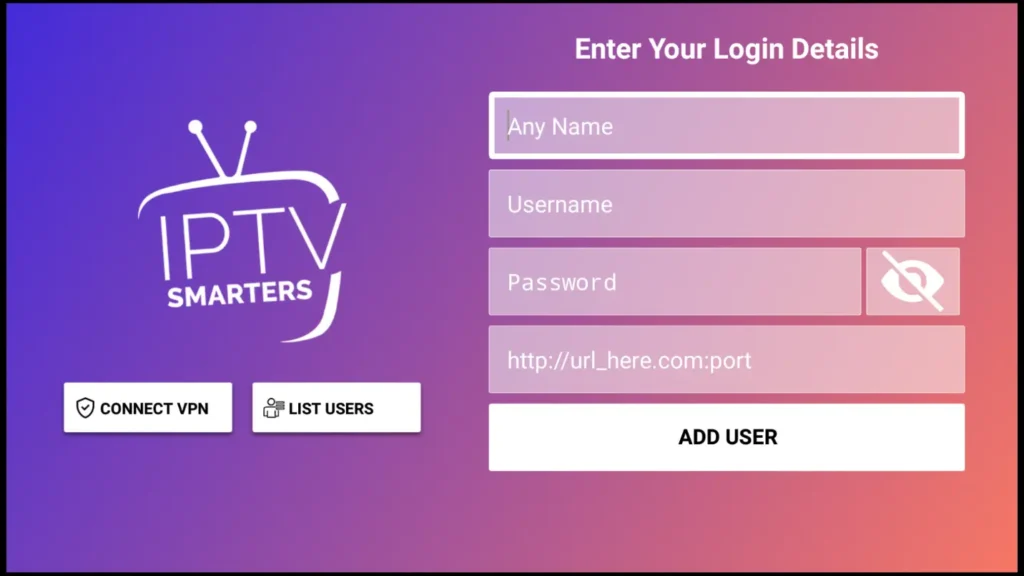
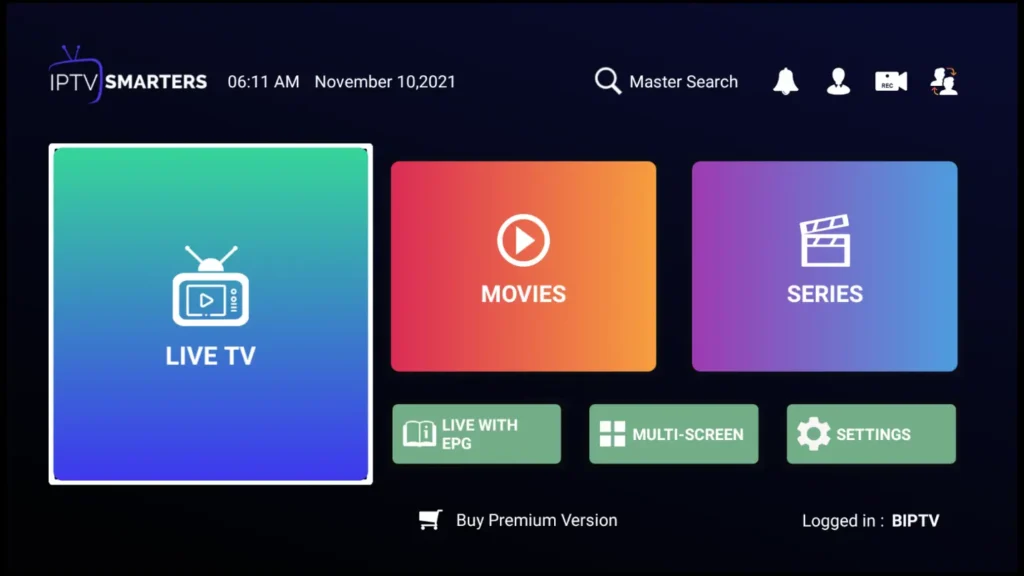
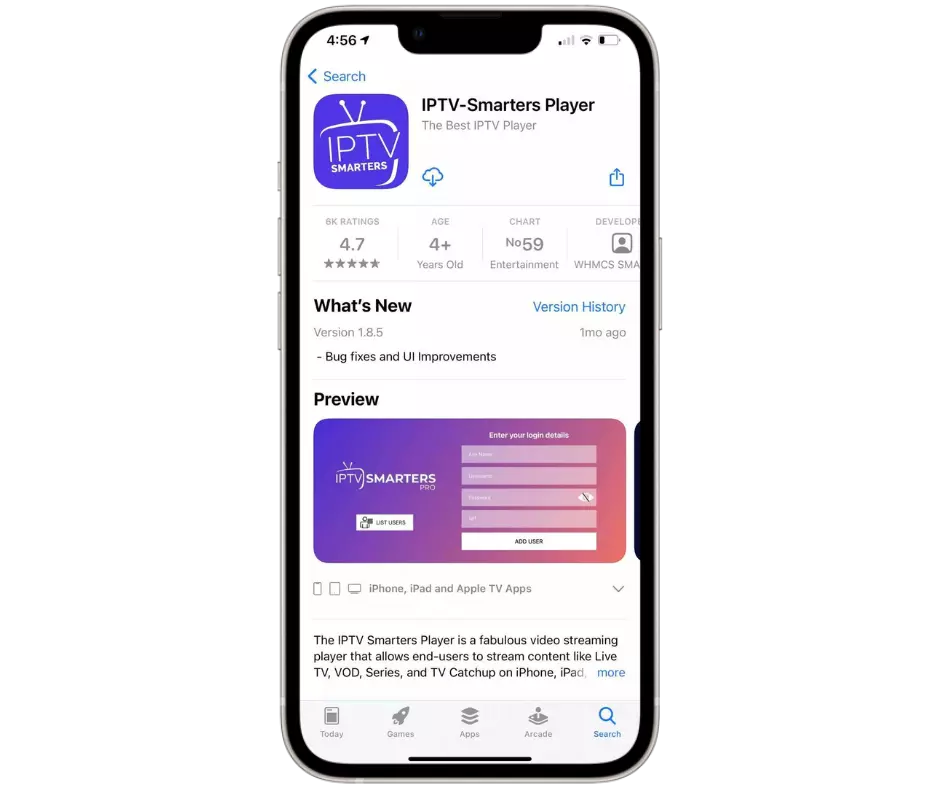
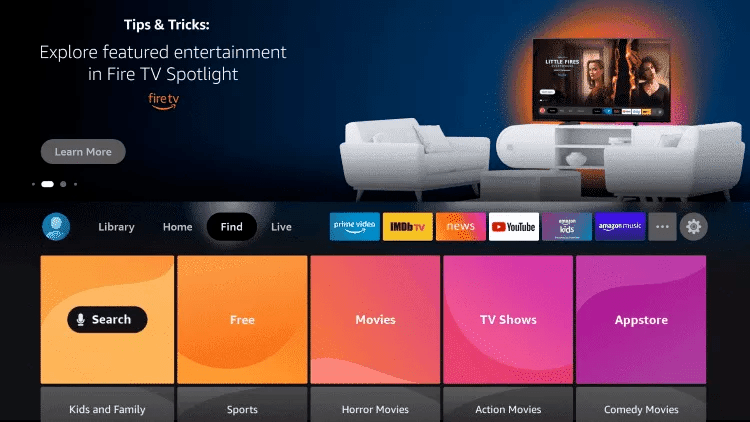
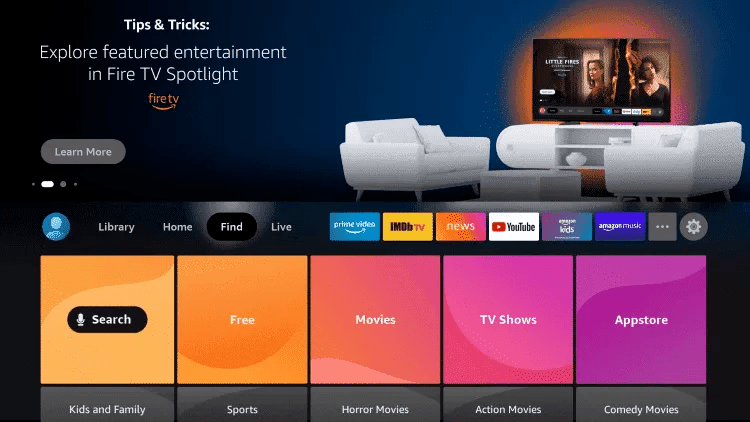
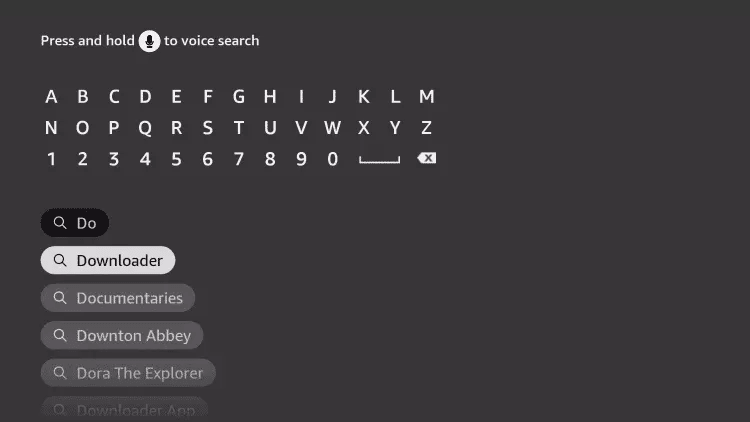
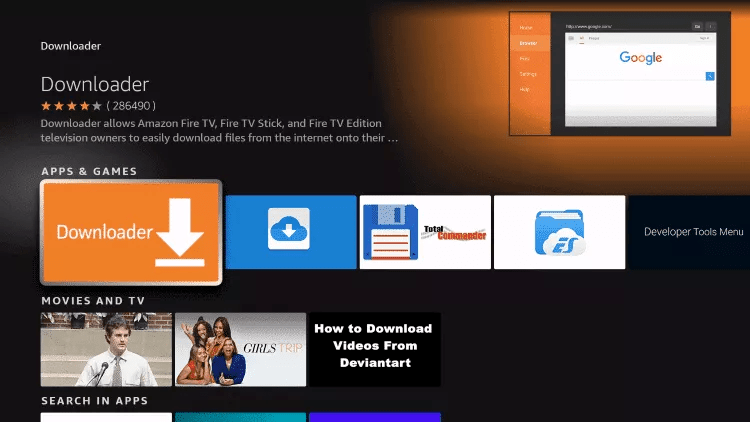
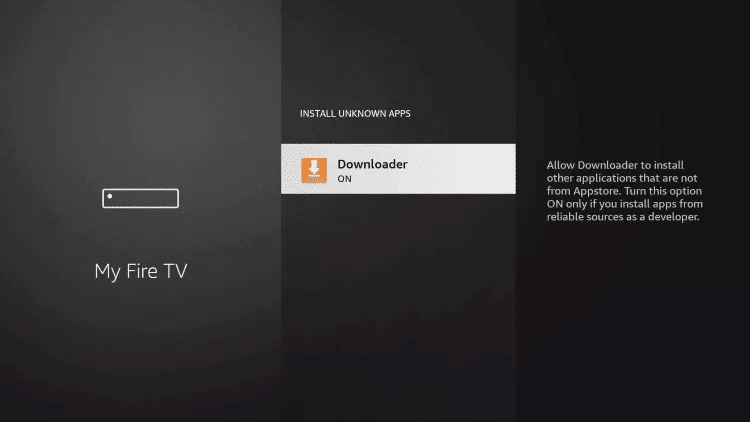
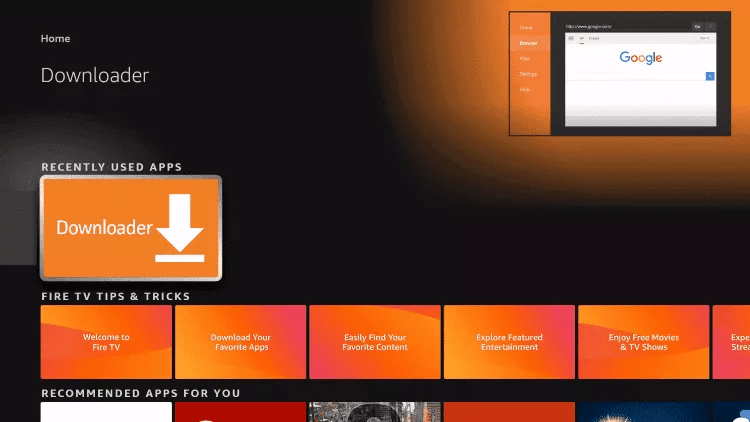
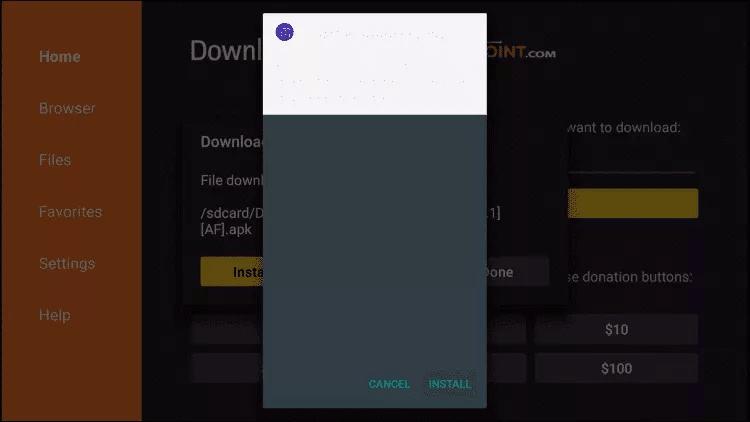
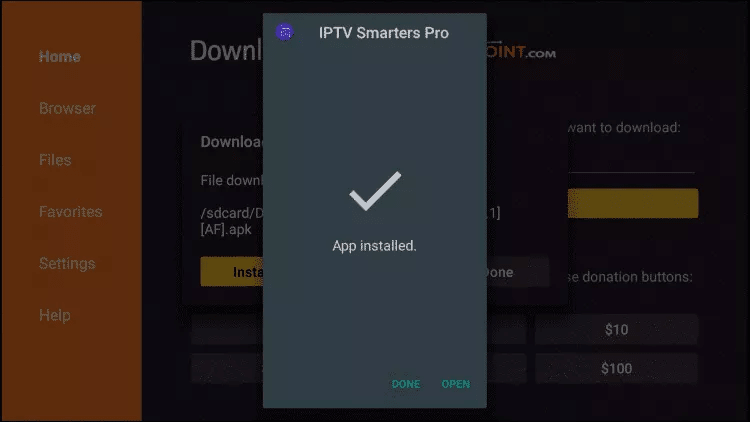
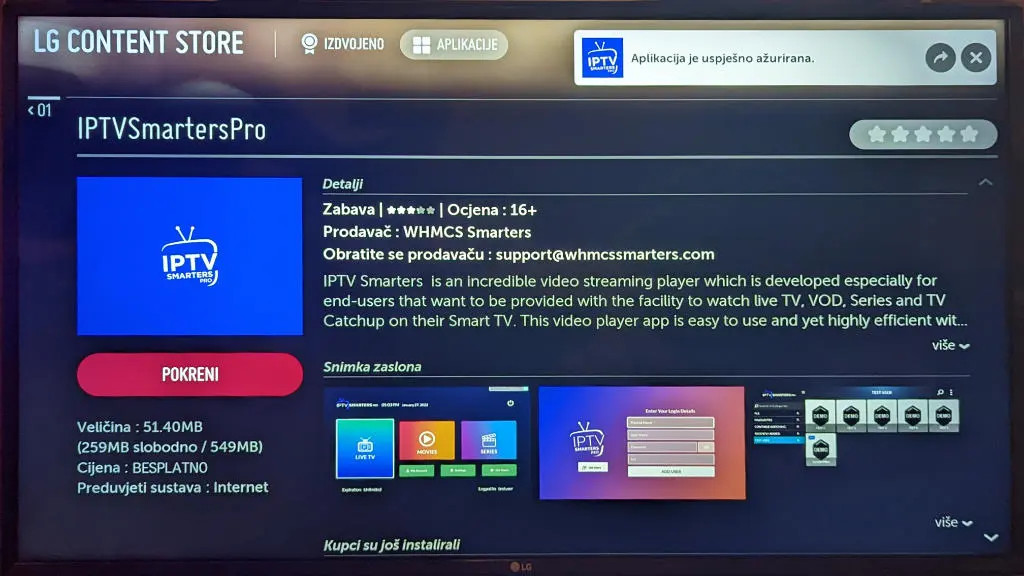
To start watching, you will need an iptv subscription, a supported device, and a medium-speed internet connection then you have to install an iptv app to play media. our service is currently available on these compatible devices:
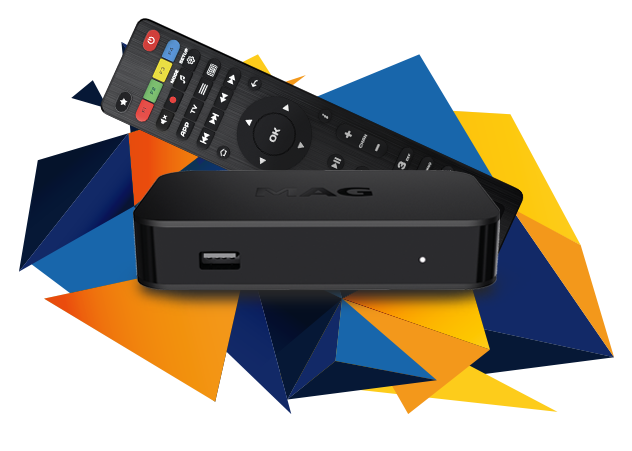
- Box TV : Android Box , MAG…
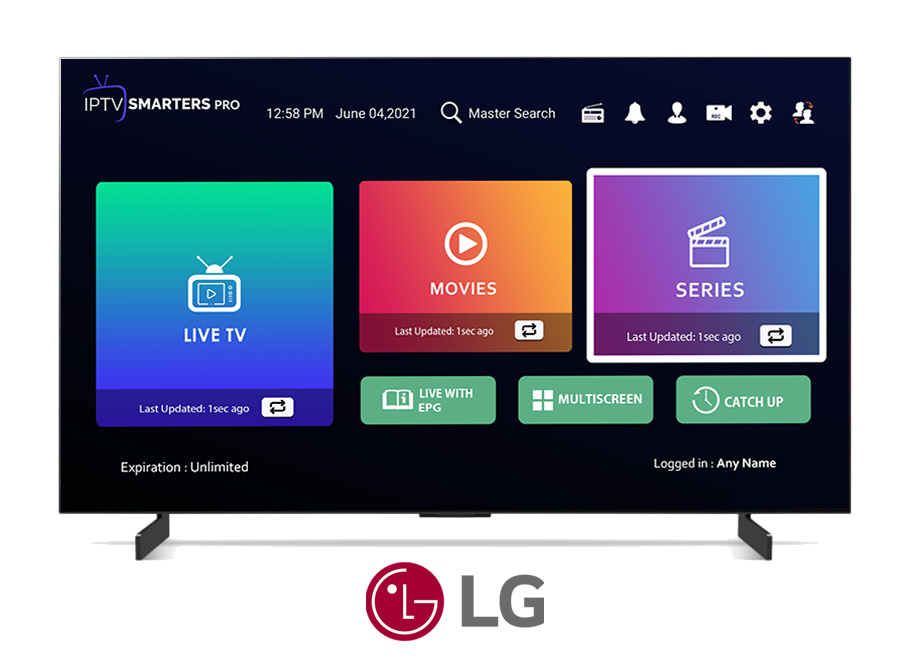
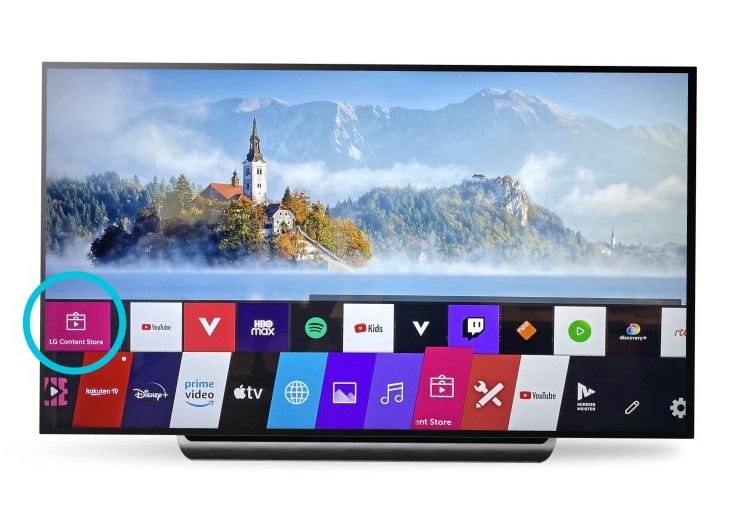
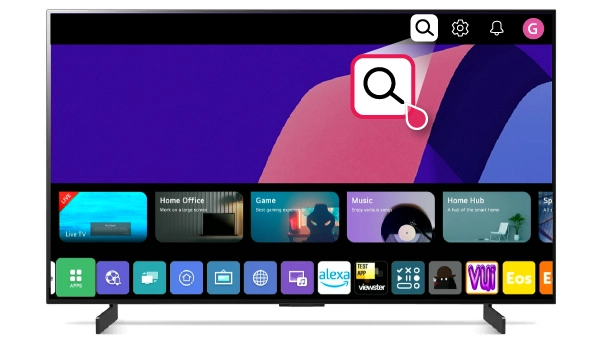
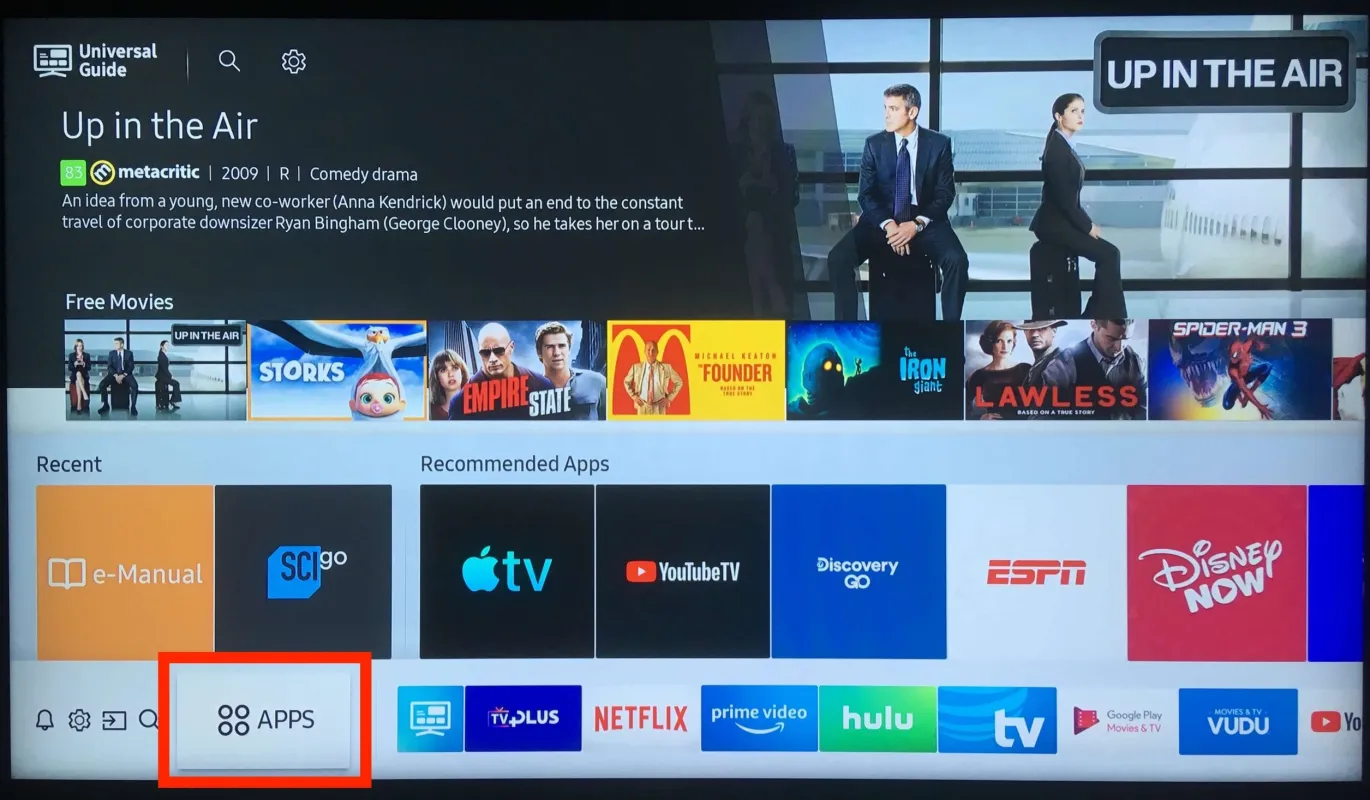
- Smart TV : LG TV or Samsung Tv or TCL TV… (All models)
- Android smartphones ou tablets
- Apple iPhones and iPads
- Apple TV (4th generation or later)
- Chromecast
- Echo Show
- Fire Tablets
- Fire TV and Fire TV Stick
- Mac or PC browser
- Nintendo Switch
- Roku and Roku Stick (select models)
- Xbox One & Xbox 360
What are the payment methods?
We accept Paypal and Credit Card VISA / MasterCard… Everything is done in an ultra-secure way via our service providers.
How can I test the iptv service?
We offers you a 12h free trial. With this you can watch all the channels available on our IPTV packages, adult (excl. on demand) channels movies and series.
How does it go after paying my iptv subscription?
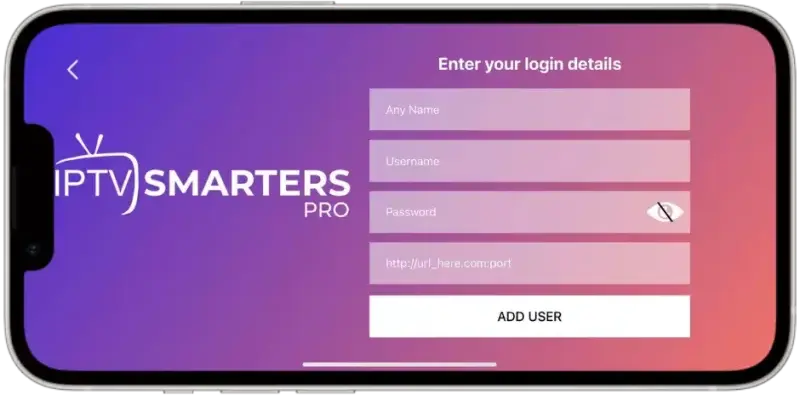
After placing your order, you will receive an email containing your login details.
My 3-month subscription is over. how can i renew it?
From our website, select the plan that suits you best, and when placing your order choose the Renewal option.
Can i watch live tv on multiple devices at the same time?
Our iptv subscription allows you to login with your account on multiple devices, but keep in mind that it works on 1 device at a time.
Do i need a vpn when using iptv service?
Using a VPN is not mandatory, but if the customer wants a secure connection with vpn he can do it,
My channels are not working?
We make sure to provide you with a high level of service at deeply discounted rates. So please keep that in mind first and foremost.
If a channel is down, we’ll do our best to get it back up and running. Please use the guidelines below before reporting a channel:
- Stop and give it a few minutes. We reboot and swap channels if needed. The channel may be coming back.
- Does this happen on all channels? If so, you need to check on your end.
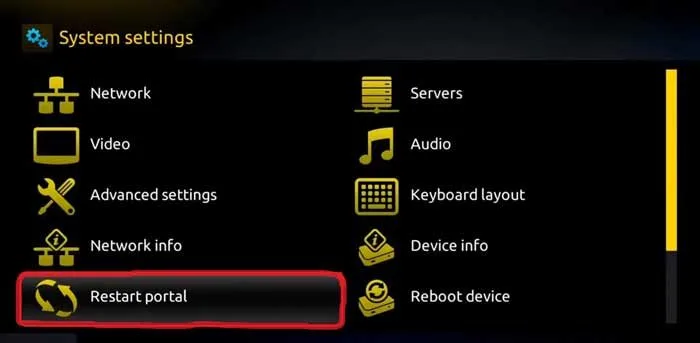
- Turn off your devices and wait 30 seconds before turning them back on (set-top boxes, Android boxes, routers, cable modems).
- Make sure you are connecting using LAN (Ethernet) cables to the devices and not via Wifi.
 EN
EN NL
NL DE
DE FR
FR PT
PT ES
ES





"Great i just renewed my iptv subscription truly premium quality and great custumer service i highly recommend it."
Simon